A Complete Guide to Photo Booth Printing with Snappic
In this guide, we’ll walk you through all the printing options available with Snappic, so you can choose the perfect solution for your events.

August 19, 2025
The Snappic team is passionate about creating unforgettable photo booth experiences.
If you’ve ever wondered how to set up photo booth printing that just works, you’re in the right place. Whether you want to avoid flaky Wi-Fi connections, ensure lightning-fast print speeds, or keep cables to a minimum, Snappic has you covered.In this guide, we’ll walk you through all the printing options available with Snappic, so you can choose the perfect solution for your events.
Wired Printing: The Gold Standard for Reliability
Wired printing is Snappic’s recommended option, especially for high-traffic events or venues with unreliable internet.

- Why choose wired printing?
- ✅ Fastest print speeds
- ✅ No dependence on Wi-Fi
- ✅ Minimal chance of disconnects
- How it works:
- Connect your iPad (running Snappic) directly to your Mac or Windows PC using:
- For Lightning iPads: the Lightning to USB 3 Camera Adapter (lets you connect power + USB simultaneously)
- For USB-C iPads: a direct USB-C to USB cable or a powered hub
- Install the Snappic Print Server on your computer
- Install your printer’s drivers
- Install Bonjour (only if you are using a Windows laptop)
- Make sure your laptop is connected to the printer
- Configure your preferred print sizes (e.g., 4x6 or 2x6 strips)
- 📘 Helpful Resources:
- Wired Printing & DSLR Support
- How to Set Up Wired Printing on Mac
- How to Set Up Wired Printing on Windows
💡 Pro Tip: A powered hub ensures your iPad charges during long events.
Wireless Printing: Clean and Flexible
Wireless printing keeps your booth uncluttered and works reliably when you have a stable private network.

- Why choose wireless printing?
- ✅ Neat, professional appearance
- ✅ Flexible booth placement
- ✅ Easy for smaller events
- How it works:
- Make sure your iPad and computer are on the same private Wi-Fi network
- Install the Snappic Print Server and your printer drivers
- Configure your settings in the Snappic app:
- Tap Print Configuration
- Select Print Server (Wireless)
- Choose your printer from the list
- 📘 Helpful Resources:
- Wireless Printing (Mac) Setup
- Wireless Printing (Windows) Setup
💡 Tip: Use a personal router (e.g., Netgear Nighthawk M1) for a rock-solid connection.
AirPrint with Snappic
AirPrint is the fastest way to print directly from your iPad without needing a computer. To use AirPrint with Snappic, you’ll need a compatible AirPrint unit that acts as the bridge between your iPad and printer.

- Why choose AirPrint?
- ✅ No computer required
- ✅ Quick, event-friendly setup
- ✅ Supports multiple print sizes (4x6 and 2x6 strips)
- ✅ Dedicated connection for reliable printing
AirPrint Units Supported
- Currently tested and confirmed to work with Snappic:
- DNP WCM
- AirCast Pro
- Units available but not tested internally by the Snappic team:
- Airkonv
- ATA Printio
- How it works:
- 1.Power on your AirPrint unit (e.g., AirCast Pro or DNP WCM).
- 2.Connect your iPad to the unit’s hotspot or Wi-Fi.
- 3.Access the unit’s settings (each device has its own setup process).
- 4.Add and configure your printer, including size formats (e.g., 4x6 and 2x6).
- 5.In the Snappic app, open your event → Configure Printing → choose AirPrint, then select the printer you set up.
- 📘 Helpful Resources:
- How to AirPrint
👉 In short: Snappic supports AirPrint through a range of AirPrint units. AirCast Pro is the most commonly used and fully supported device, but DNP WCM and others can also work.
Choosing the Right Printing Method
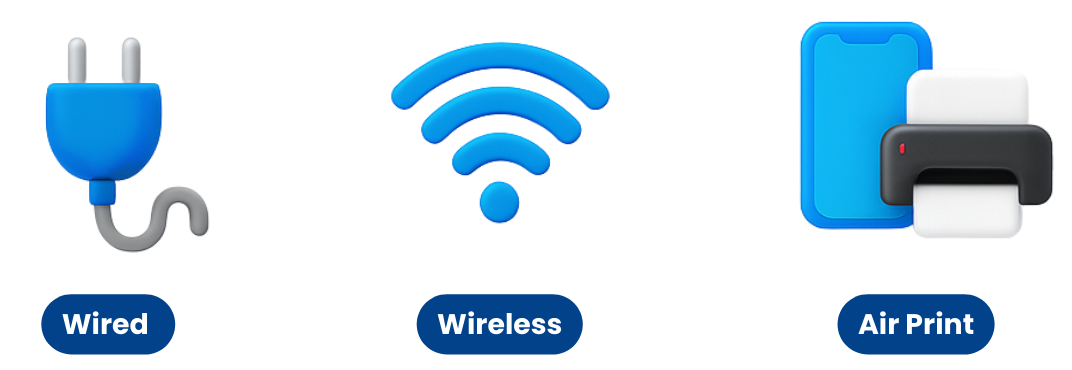
- ✅ Wired printing: Best for busy events, maximum speed, and stability
- ✅ Wireless printing: Best for clean setups with private, reliable Wi-Fi
- ✅ AirPrint: Best for simple, no-computer setups
Need Help Setting Up?
Snappic offers 24/7 support to walk you through setup, troubleshooting, and advanced configurations.🙌 Ready to experience effortless printing? Start your free 14-day trial today.
FAQs
Q1: What is the most reliable way to print from my photo booth?
A1: Wired printing with Snappic is the most reliable method. By connecting your iPad directly to your computer via USB, you avoid Wi-Fi issues and ensure fast, stable prints.
Q2: Does Snappic support wireless printing?
A2: Yes! You can use Snappic Print Server over Wi-Fi, AirPrint for direct iPad printing, or AirCast Pro for dedicated wireless connections.
Q3: Which printers work best with Snappic?
A3: Snappic supports popular models from DNP, HiTi, Mitsubishi, and Citizen. Always install the latest drivers for the best performance.
Q4: Can I print photo strips with Snappic?
A4: Absolutely. Snappic supports both 4x6 standard prints and 2x6 strips. You can enable the 2-inch cut option for automatic splitting.
More from Melissa


Previous Post
Best Photo Booth Printing Solution
Eliminate photo booth printing headaches with Snappic. Discover why our software delivers unmatched reliability and performance for your events.
Next Post
AirCastPro Not Working with Snappic? Here’s How to Fix It
Are you experiencing issues printing with AirCastPro at your photo booth events? You’re not alone. This is currently one of the most frequently asked questions in the Snappic community, and we’re here to help.