Direct USB Printing vs. Print Server: Which Should You Use?
Compare Direct USB Printing vs Print Server for faster, reliable photo booth printing. See which setup boosts uptime, DNP compatibility, and event profits.

November 12, 2026
The Snappic team is passionate about creating unforgettable photo booth experiences.
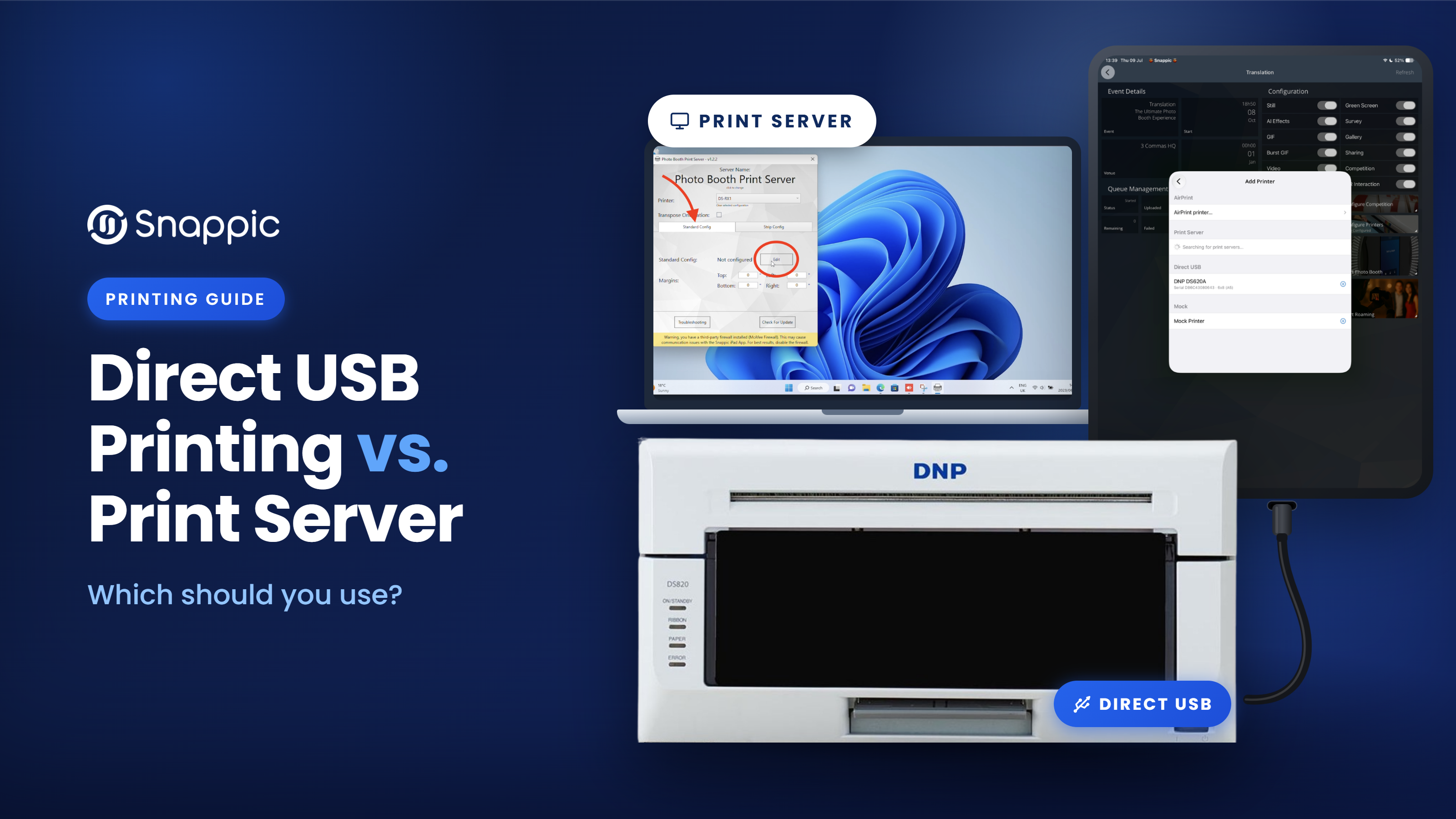
Should your iPad print directly to your printer, or through a Mac or Windows computer?
With Snappic, Direct USB Printing and a wired Print Server are two ways to get your guests' photos into their hands. Both routes can provide prints without relying on venue internet, but each comes with different set of hardware requirements, setup considerations and capabilities.
So, which one makes the most sense for your photo booth? Let's look at how they work, where each has its advantages and what to consider before your next event.
What's the difference?
| Direct USB Printing | Wired Print Server |
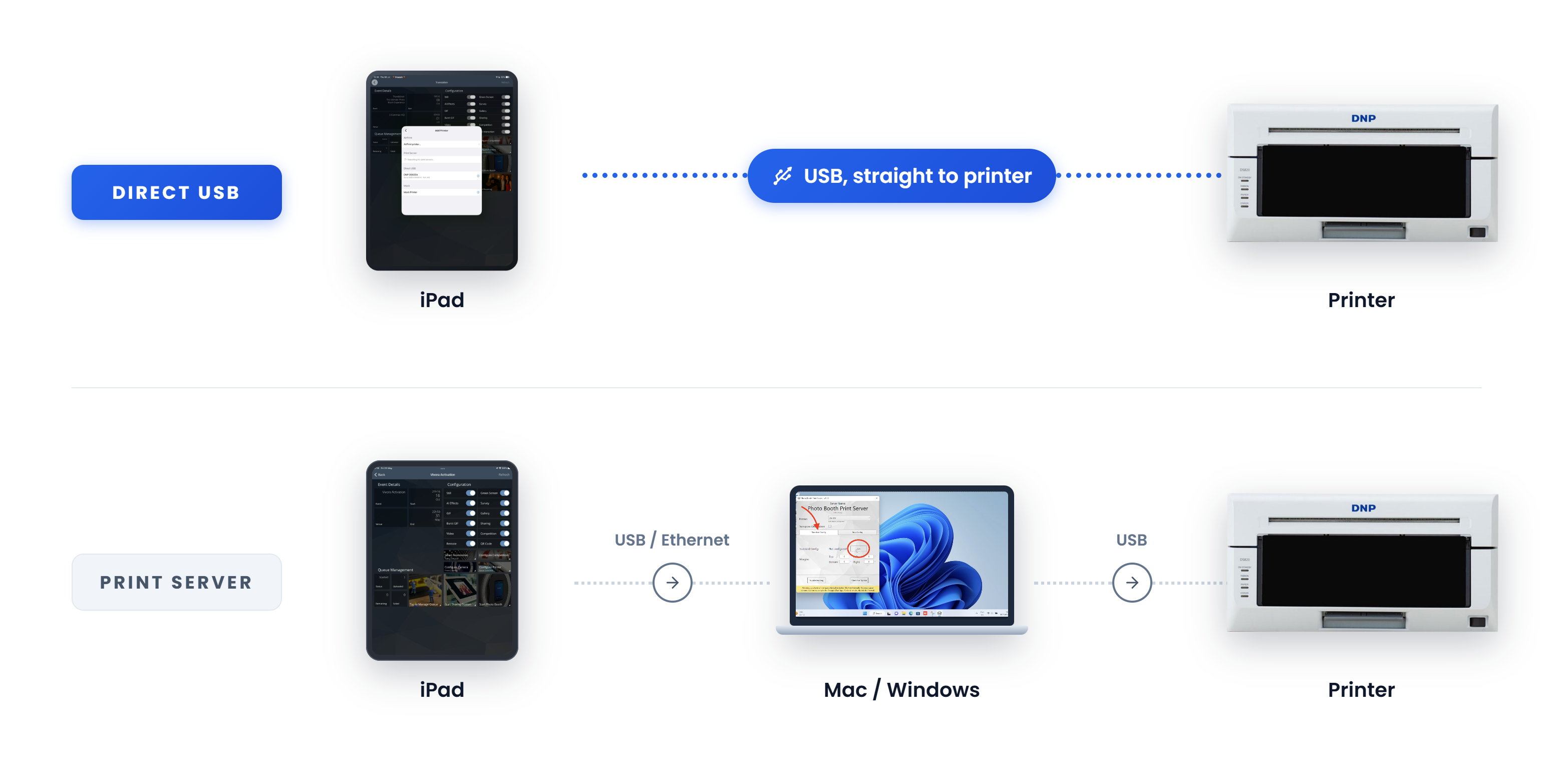
Print connection | iPad → Printer | iPad → Computer → Printer |
Separate computer | Not required | Required |
Printing network | Not required | Local connection between iPad and computer |
iPad compatibility | M-series iPad, iPadOS 16+ | Supports older compatible iPads too |
Printer compatibility | Specific supported dye-sub models (See compatibility list here) | Depends on computer, drivers and Print Server configuration (See printer compatibility list here) |
Printer controls | Direct in-app controls where supported | Some settings managed through the computer and printer driver |
Both workflows have a place. Here's what to know before choosing one.
How Direct USB Printing works
Direct USB Printing connects a compatible iPad straight to a supported dye-sublimation printer.
Snappic sends the print job directly to the printer, removing the need for a separate Print Server computer or wireless printing unit.
For photo booth operators looking to simplify their booth hardware, that's a practical advantage. There's less equipment to transport and power, and printing doesn't depend on maintaining a local network connection.
What you'll need
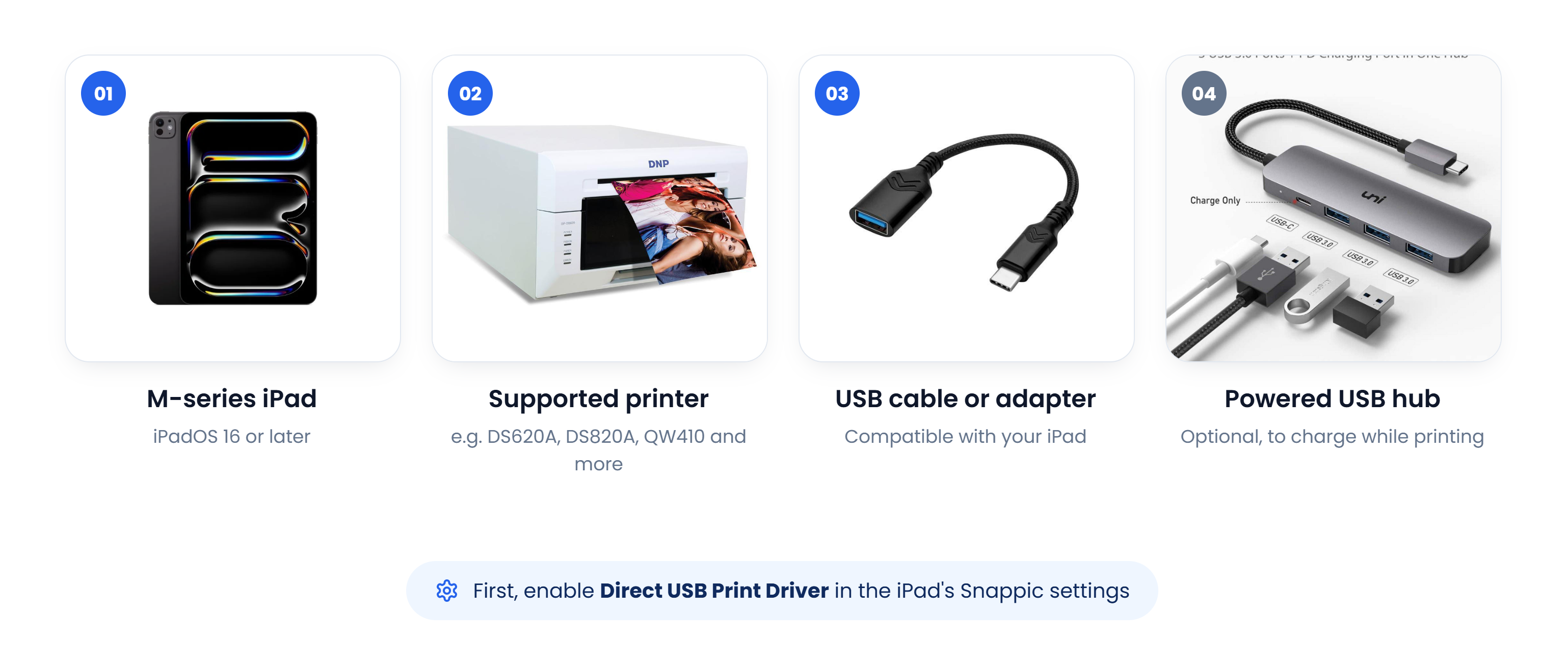
Direct USB Printing requires an iPad with an Apple M-series chip running iPadOS 16 or later.
You'll also need a supported printer. The documented compatibility list includes models such as the DNP DS620A, DS820A, QW410 and DS-RX1, along with other supported DNP and Citizen printers.
Before connecting the printer, enable Direct USB Print Driver in the iPad's Snappic settings. You'll need a compatible USB cable or adapter, and a powered USB hub if you want to charge your iPad while printing.
Check out our Direct USB Printing setup guide for the complete printer list and current availability.
What makes it useful?
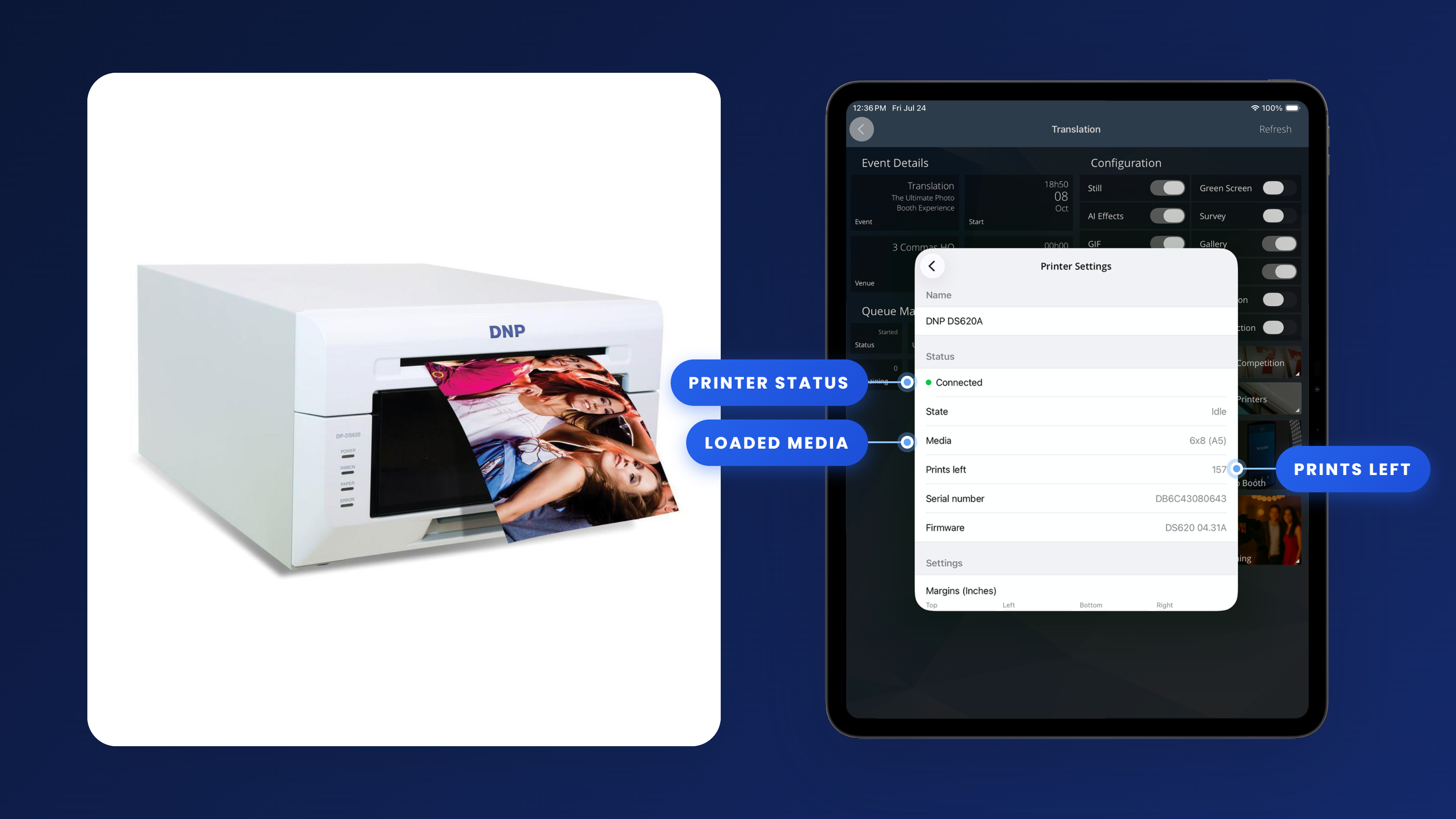
Beyond reducing how much equipment you need to carry with you, Direct USB gives photo booth operators access to printer information directly within the Snappic app when the connected model supports it. That could include remaining media, printer status and errors such as an open cover or cooling print head.
With supported DNP printers, Snappic can also confirm when a print has physically completed, giving operators more detailed feedback during an event. Available print sizes, finishing options and other controls depend on the printer model, firmware and loaded media.
How a wired Print Server works
With a wired Print Server setup, the iPad communicates with a Mac or Windows computer running the Snappic Print Server.
The iPad-to-computer connection can use USB or Ethernet, depending on your hardware. The computer then passes the print job to the printer, typically through its USB connection. This adds a computer to your setup, but it also allows operators to use printers supported through their computer's operating system and installed drivers.
It's particularly useful if you already have a dependable Print Server workflow or your equipment doesn't meet the requirements for Direct USB.
What you'll need
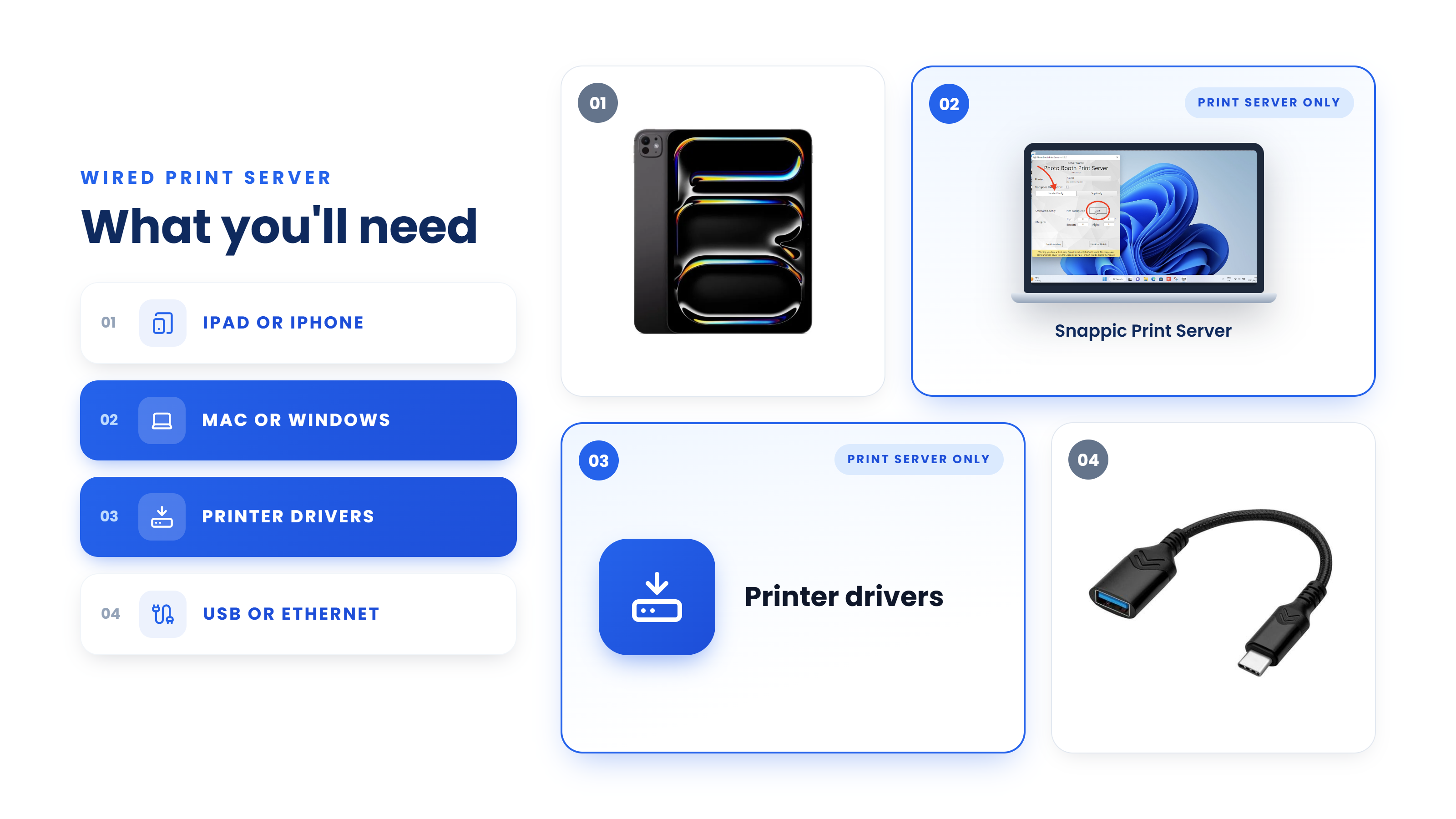
A typical wired Print Server setup includes:
- A compatible iPad or iPhone.
- A Mac or Windows computer running the Snappic Print Server.
- The printer's appropriate computer drivers.
- Suitable USB or Ethernet connections, with the required adapters or hubs.
Make sure the computer stays awake throughout the event and that the printer is correctly configured in the Print Server software.
Windows setups may also require Bonjour and, for certain wired connections, iTunes.
You can find the setup instructions in Snappic's Mac Print Server guide and Windows Print Server guide.
Which printing setup should you choose?
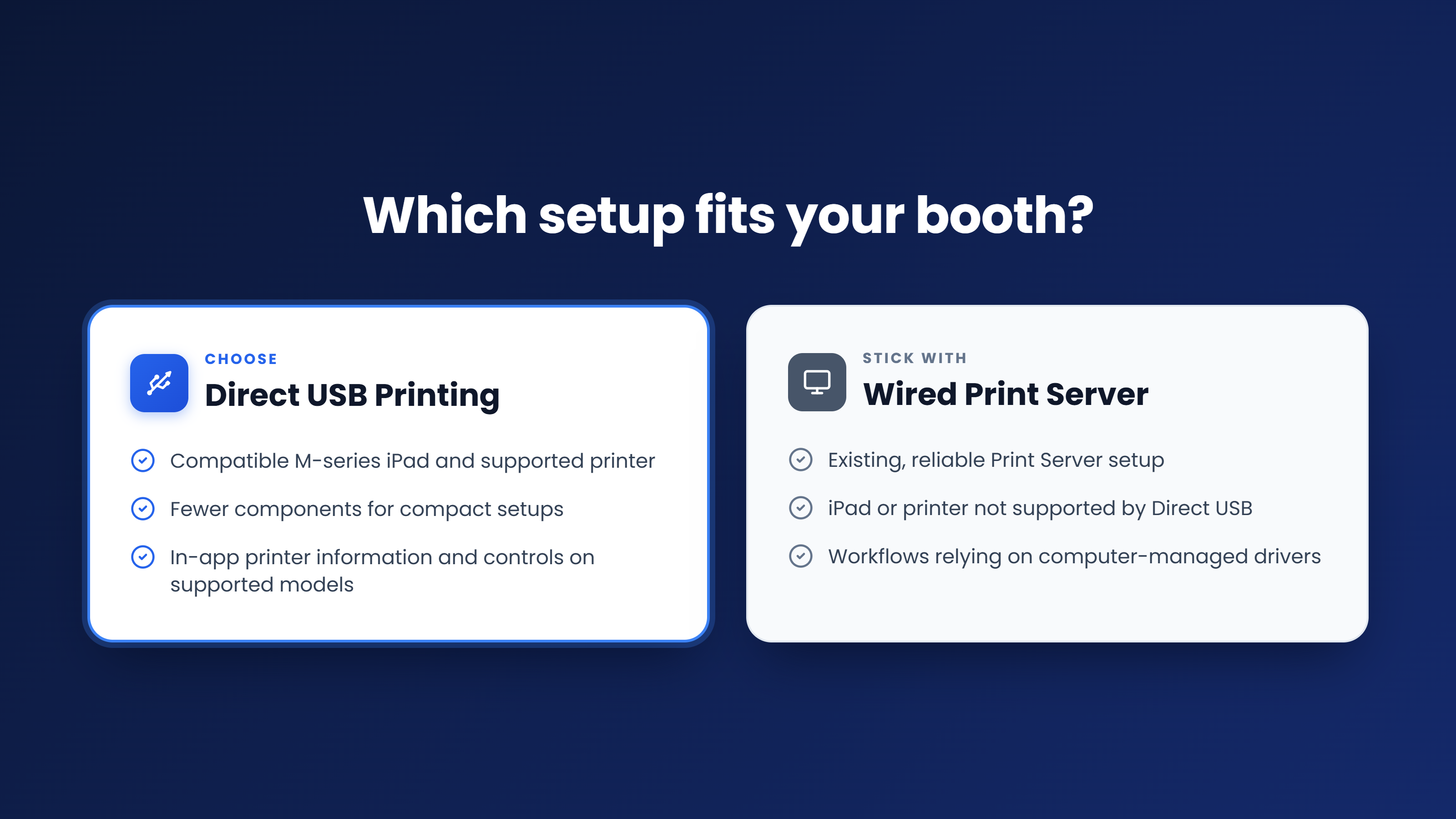
Choose Direct USB Printing when:
- You have a compatible M-series iPad and supported printer, and you'd like to reduce the amount of equipment needed for your booth.
- It's particularly appealing for compact setups where space is limited or transporting and powering another computer adds unnecessary complexity.
- Direct USB also gives you access to additional printer information and controls with supported models.
Stick with a wired Print Server when:
- You have a reliable, tested Print Server setup, or your existing iPad or printer isn't compatible with Direct USB.
- A Print Server also makes sense when your workflow depends on printer drivers or configurations managed through your Mac or Windows computer.
- There's no need to replace a dependable setup simply because another connection method is available.
What about weddings and high-volume events?
The connection method alone doesn't determine how quickly guests receive their prints. Printer speed, media size, the number of copies requested and the rate at which sessions arrive all affect the queue.
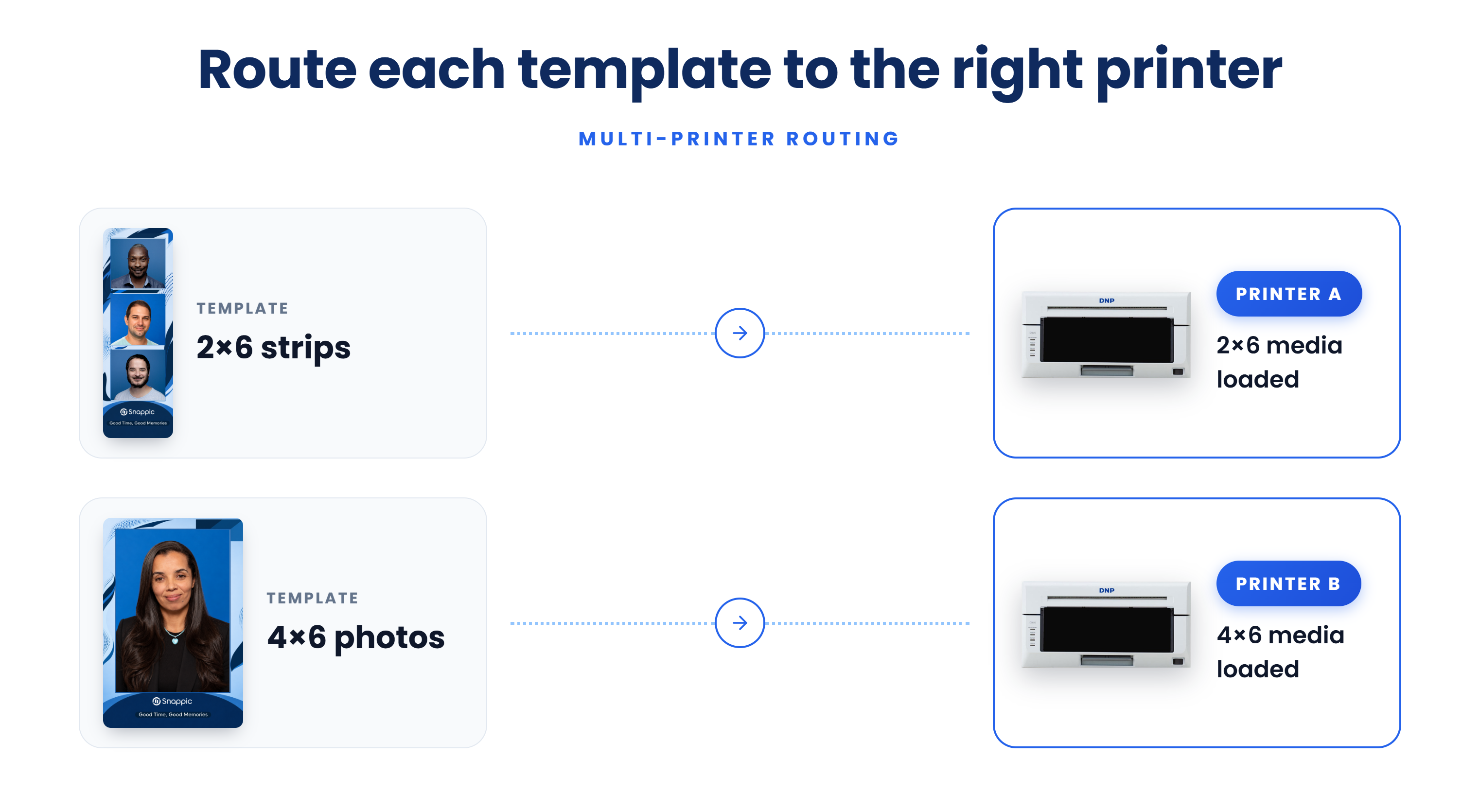
If you're running multiple printers, Snappic's printer-routing options can help direct specific templates to the right printer. Compatible configurations can also assist with distributing printing jobs between equally eligible printers.
For example, a photo booth operator printing both 2×6 strips and 4×6 photos can configure different printers to handle those formats.
Always confirm the printer settings and routing before opening your booth at events. Jobs won't automatically move to a printer that isn't configured to accept them.
Read more about routing templates to printers.
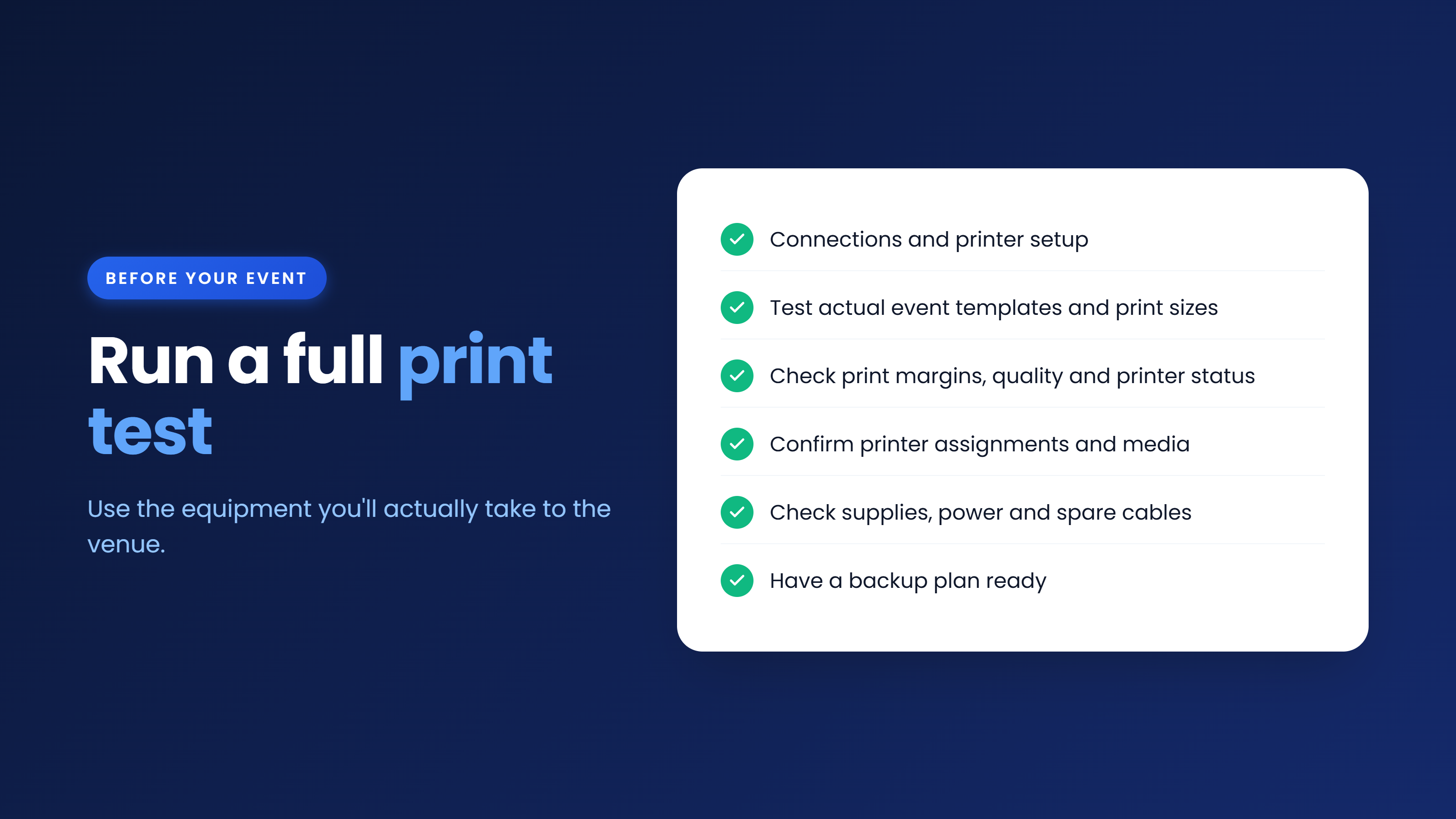
Test the full printing workflow before your event
Whichever setup you choose, run a complete print test using the equipment you'll actually take to the venue.
Start by checking your connections and printer configuration. Then print the event's actual templates, including any strip layouts, cutting options and required print sizes.
For Direct USB, Snappic includes a Test Print feature to help check margins and output quality, as well as a printer check when starting an event.
If you're using multiple printers, verify that each printer accepts the intended templates and has the correct media loaded. And don't overlook the basics: printer consumables, power, charging, spare cables and a tested backup plan.
One useful reminder: Printing over a direct USB or functioning local connection doesn't require venue internet. Online delivery, uploads and other connected features have their own connectivity requirements.
The right setup is the one that works for your booth
Direct USB Printing can make a compatible photo booth setup considerably simpler. It reduces the equipment needed and gives operators useful printer-management capabilities directly within Snappic.
A wired Print Server remains a practical option for operators who rely on their existing computer-based printing workflows.
Before changing your setup, confirm compatibility, check the available features and test the complete printing process. And if you're unsure which route suits your equipment, Snappic's Support team is available 24/7 to help you work through your options.
Helpful resources
- Setting Up Direct USB Printing
- Wired Printing and DSLR Support
- Mac Print Server Setup
- Windows Print Server Setup
- Print Settings Explained
FAQ's
1. What is the difference between Direct USB Printing and a Print Server?
Direct USB Printing connects a compatible iPad directly to a supported printer. A wired Print Server uses an iPad or iPhone connected to a Mac or Windows computer, which then sends the print job to the printer.
2. What iPad do I need for Snappic Direct USB Printing?
Direct USB Printing requires an iPad with an Apple M-series chip running iPadOS 16 or later.
3. Which printers are compatible with Direct USB Printing?
Supported models include the DNP DS620A, DS820A, QW410 and DS-RX1, along with other supported DNP and Citizen printers. Check the Direct USB Printing setup guide for the complete compatibility list.
4. Do I need a computer for Direct USB Printing?
No. Direct USB Printing connects the compatible iPad directly to the supported printer, eliminating the need for a separate Print Server computer or wireless printing unit.
5. Can I use an older iPad with Snappic Print Server?
A wired Print Server supports older compatible iPads too. Unlike Direct USB Printing, it doesn't require an M-series iPad. You'll still need a compatible Mac or Windows computer running the Snappic Print Server.
6. Does Direct USB Printing require an internet connection?
No. Direct USB Printing does not rely on venue internet. It connects the iPad directly to the printer. Online delivery, uploads and other connected features may still require internet access.
7. What equipment do I need for a wired Print Server setup?
You'll need a compatible iPad or iPhone, a Mac or Windows computer running the Snappic Print Server, the appropriate printer drivers and suitable USB or Ethernet connections. Windows setups may also require Bonjour and, for certain wired connections, iTunes.
8. Can Snappic show printer status and remaining media?
Yes. With supported printers, Direct USB Printing can provide information such as remaining media, printer status and certain error notifications. Available information and controls depend on the printer model, firmware and loaded media.
9. Can I connect multiple printers to Snappic and route different templates to each one?
Yes. Snappic's printer-routing options allow operators to direct specific templates to configured printers. For example, one printer can handle 2×6 strips while another handles 4×6 photos.
10. How can I test my photo booth printing setup before an event?
Run a complete print test using the equipment you'll take to the venue. Check connections, printer configuration, actual event templates, print sizes, margins and quality. If you're using multiple printers, confirm that each accepts the intended templates and has the correct media loaded. Snappic also includes a Test Print feature for Direct USB Printing.