Create your perfect Glam look with Snappic
Compare five finishes, download the PNG layers, and add your chosen look to a Snappic still template.


Compare looks
See each finish side by side
Same sample photo. Actual PNG-layer previews. Skin smoothing is separate.
Showing Signature Glam
Image output will vary depending on the lighting and composition of the input image. Test in event conditions to get the most accurate output example.
The five looks
Five finishes, one sample photo
Each look is a stack of PNG layers. More layers means a few more uploads in the template editor — the setup steps are the same for every look.
Each pack contains that look’s effect PNGs and a SETUP.txt checklist. You need every PNG in the pack — each one has its own Blend Mode, so they can’t be merged into a single file.
Leave each layer at the editor’s default (full) opacity. The strength is already built into the PNG’s transparency, so lowering opacity weakens the recipe. The effect PNGs are not photos — your decorative overlay (border, event branding, text) stays a separate layer on top.
Add A first, then B, C and the remaining files. A sits nearest the photo. Keep all effect layers below your decorative overlay.
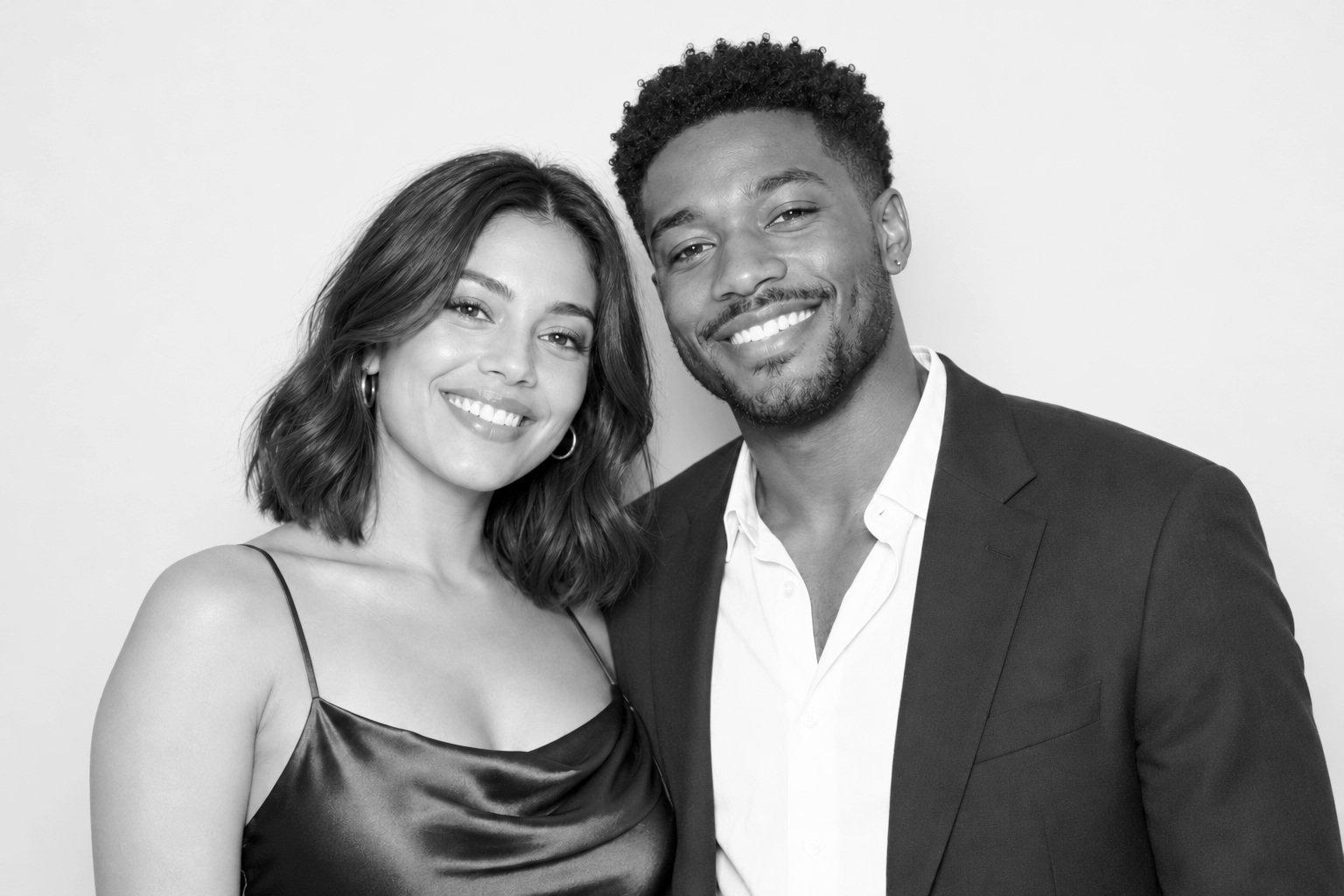 14 PNG layers
Signature Glam
Bright, clean, luminous.
Bright skin tones, clean whites and a luminous monochrome finish.
A Color → B Color Burn → C Soft Light → D Color Dodge
ZIP · 3 KB
Layer settings and individual files for Signature Glam
Signature Glam layers in upload order, A nearest the photo Letter File Blend Mode Opacity A A-black-and-white--COLOR.pngBlack and white · 17 KB Color 100% / default B B-black-anchor--COLOR-BURN.pngBlack anchor · 17 KB Color Burn 100% / default C C-glam-lift--SOFT-LIGHT.pngGlam lift · 17 KB Soft Light 100% / default D D-bright-finish--COLOR-DODGE.pngBright finish · 17 KB Color Dodge 100% / default Listed in application order: A nearest photo; final letter nearest decorative overlay.
Preview images
Finished examples for reference. Don’t upload these as effect layers.
- Download preview image1536 × 1024 PNG · 1.0 MB
- Download enlarged preview3072 × 2048 PNG, enlarged from 1536 × 1024 · 2.4 MB
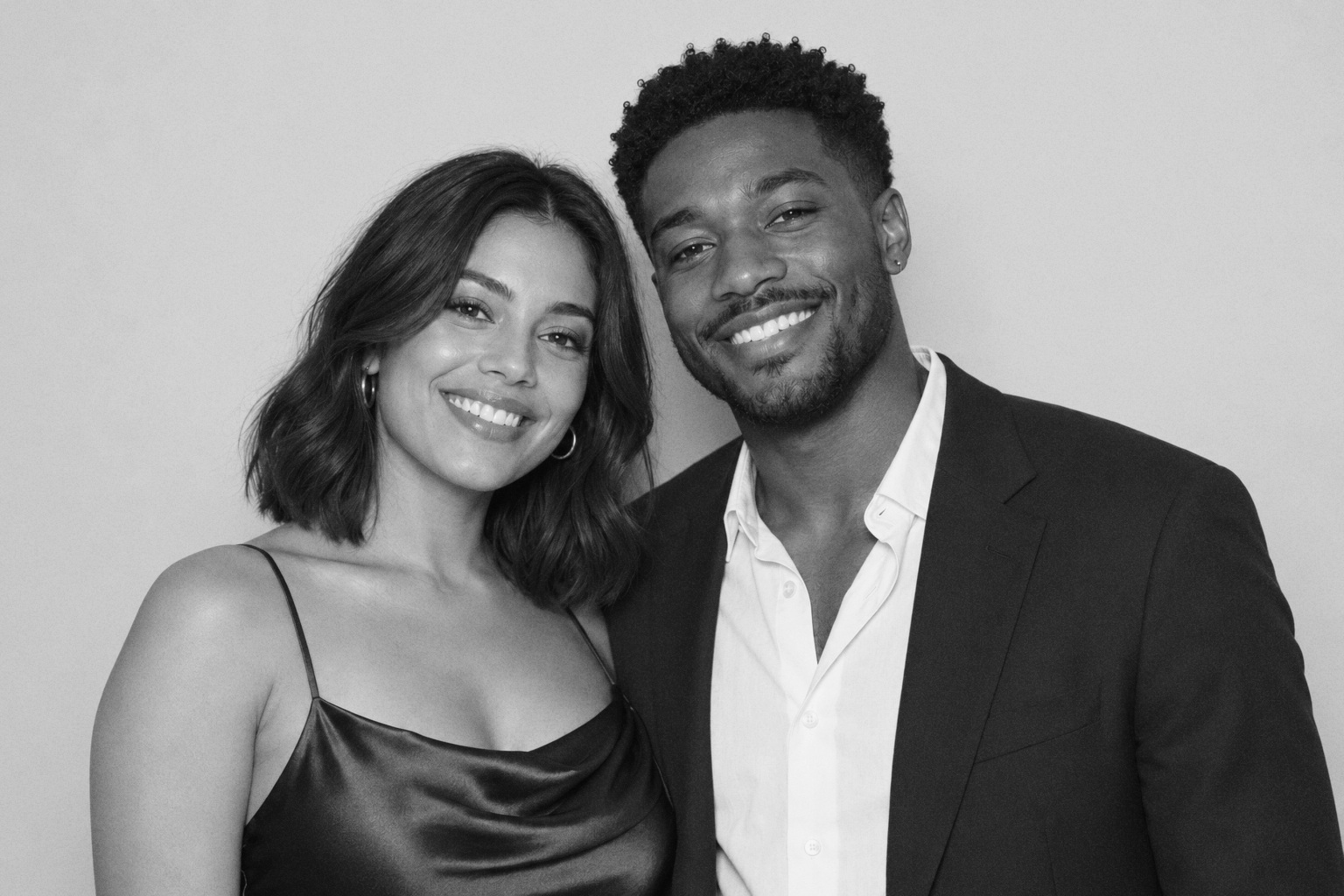 25 PNG layers
Analog Booth
Dense, textured, nostalgic.
Denser middle tones, softly lifted blacks and fine monochrome grain.
A Color → B Color Burn → C Soft Light → D Exclusion → E Soft Light
ZIP · 606 KB
Layer settings and individual files for Analog Booth
Analog Booth layers in upload order, A nearest the photo Letter File Blend Mode Opacity A A-black-and-white--COLOR.pngBlack and white · 17 KB Color 100% / default B B-print-depth--COLOR-BURN.pngPrint depth · 17 KB Color Burn 100% / default C C-gentle-midtone-lift--SOFT-LIGHT.pngGentle midtone lift · 17 KB Soft Light 100% / default D D-soft-print-endpoints--EXCLUSION.pngSoft print endpoints · 17 KB Exclusion 100% / default E E-fine-print-grain--SOFT-LIGHT.pngFine print grain · 674 KB Soft Light 100% / default Listed in application order: A nearest photo; final letter nearest decorative overlay.
Preview images
Finished examples for reference. Don’t upload these as effect layers.
- Download preview image1536 × 1024 PNG · 1.3 MB
- Download enlarged preview3072 × 2048 PNG, enlarged from 1536 × 1024 · 3.6 MB
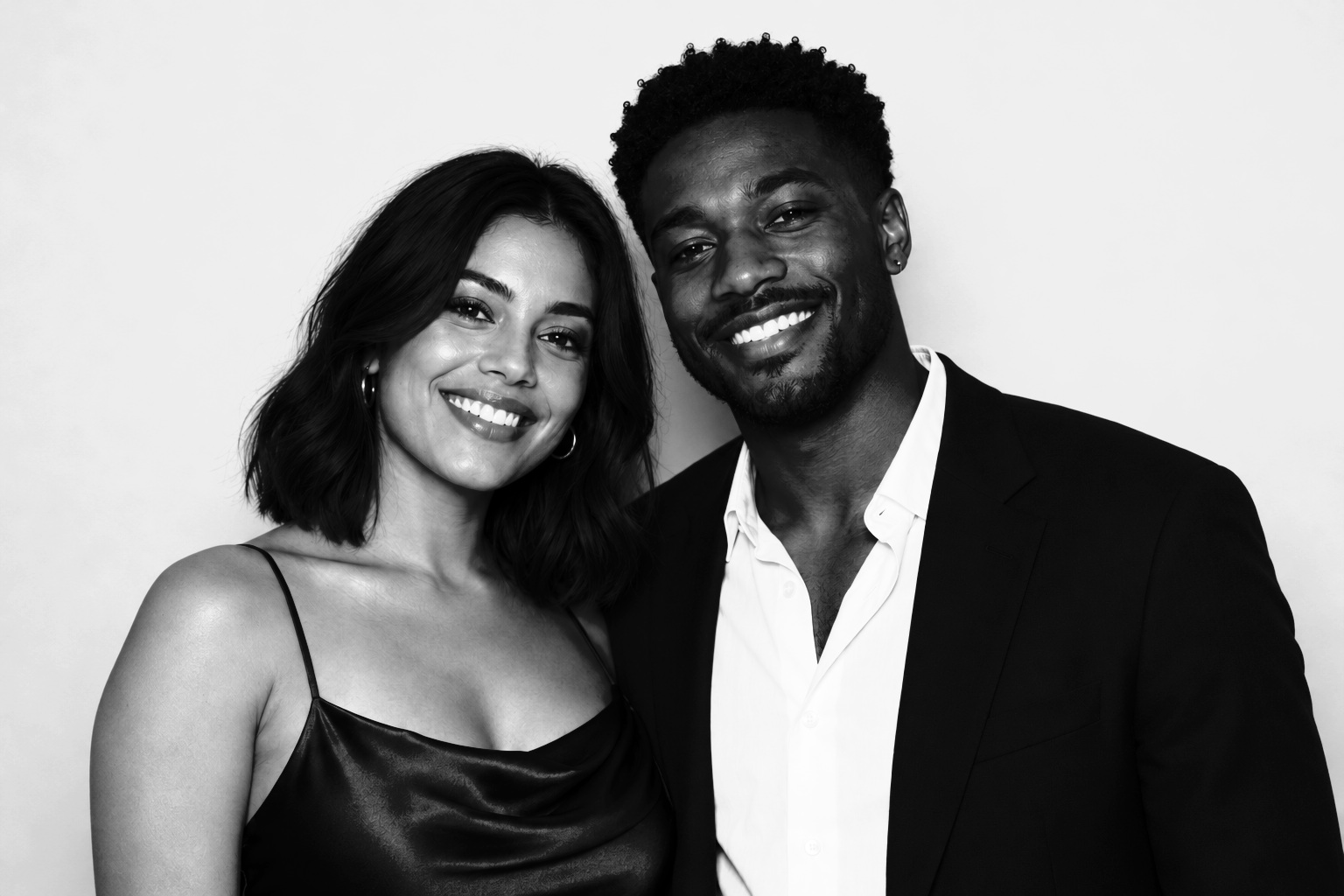 33 PNG layers
Hard Flash
Bold, punchy, high contrast.
Deep shadows and punchy highlights for a bold, high-contrast finish.
A Color → B Color Burn → C Color Dodge
ZIP · 3 KB
Layer settings and individual files for Hard Flash
Hard Flash layers in upload order, A nearest the photo Letter File Blend Mode Opacity A A-black-and-white--COLOR.pngBlack and white · 17 KB Color 100% / default B B-hard-shadow--COLOR-BURN.pngHard shadow · 17 KB Color Burn 100% / default C C-hard-highlight--COLOR-DODGE.pngHard highlight · 17 KB Color Dodge 100% / default Listed in application order: A nearest photo; final letter nearest decorative overlay.
Preview images
Finished examples for reference. Don’t upload these as effect layers.
- Download preview image1536 × 1024 PNG · 963 KB
- Download enlarged preview3072 × 2048 PNG, enlarged from 1536 × 1024 · 2.3 MB
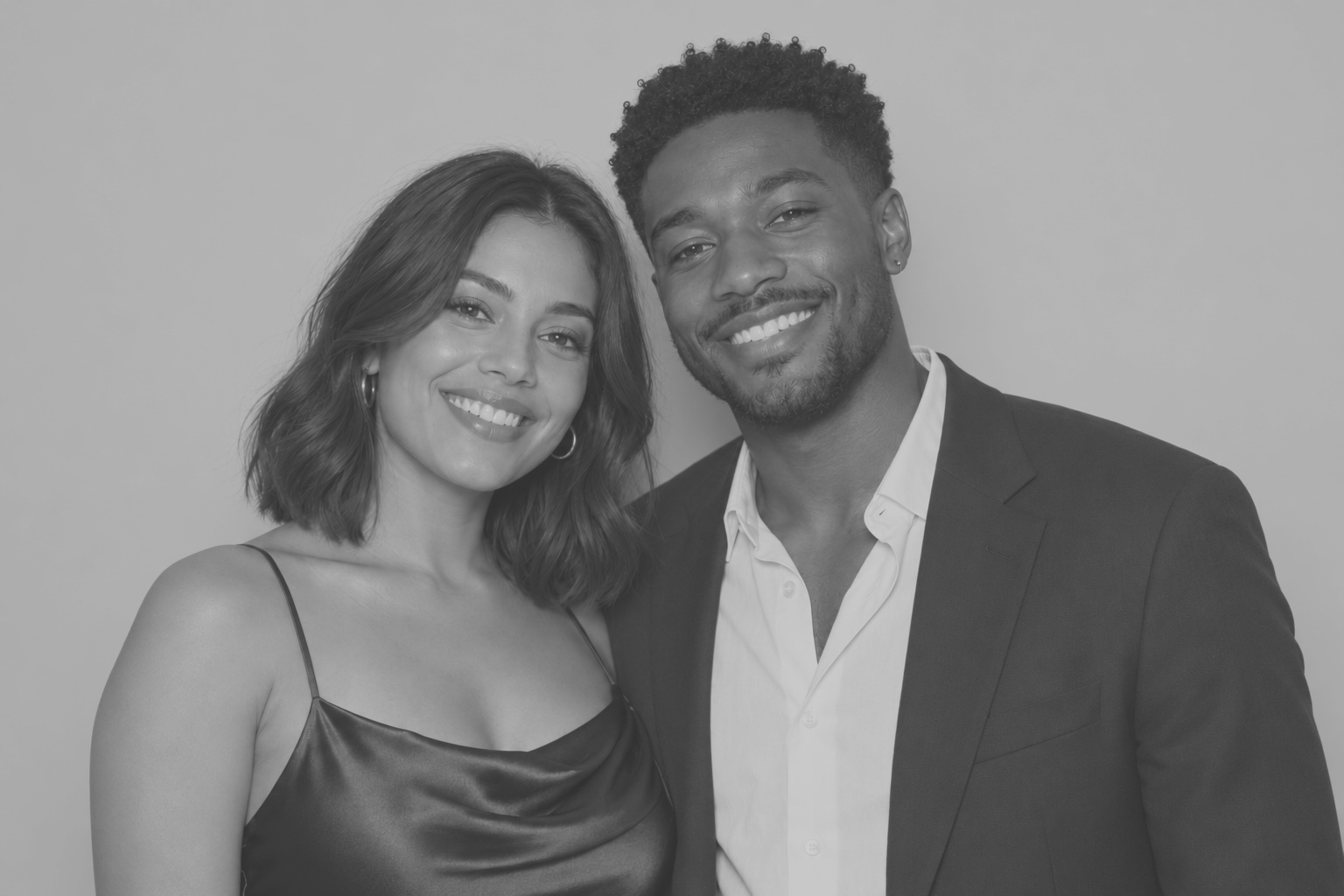 42 PNG layers
Matte Archive
Faded, soft contrast.
Lifted blacks and muted whites for an intentionally faded print effect.
A Color → B Exclusion
ZIP · 2 KB
Layer settings and individual files for Matte Archive
Matte Archive layers in upload order, A nearest the photo Letter File Blend Mode Opacity A A-black-and-white--COLOR.pngBlack and white · 17 KB Color 100% / default B B-strong-matte-fade--EXCLUSION.pngStrong matte fade · 17 KB Exclusion 100% / default Listed in application order: A nearest photo; final letter nearest decorative overlay.
Preview images
Finished examples for reference. Don’t upload these as effect layers.
- Download preview image1536 × 1024 PNG · 876 KB
- Download enlarged preview3072 × 2048 PNG, enlarged from 1536 × 1024 · 2.0 MB
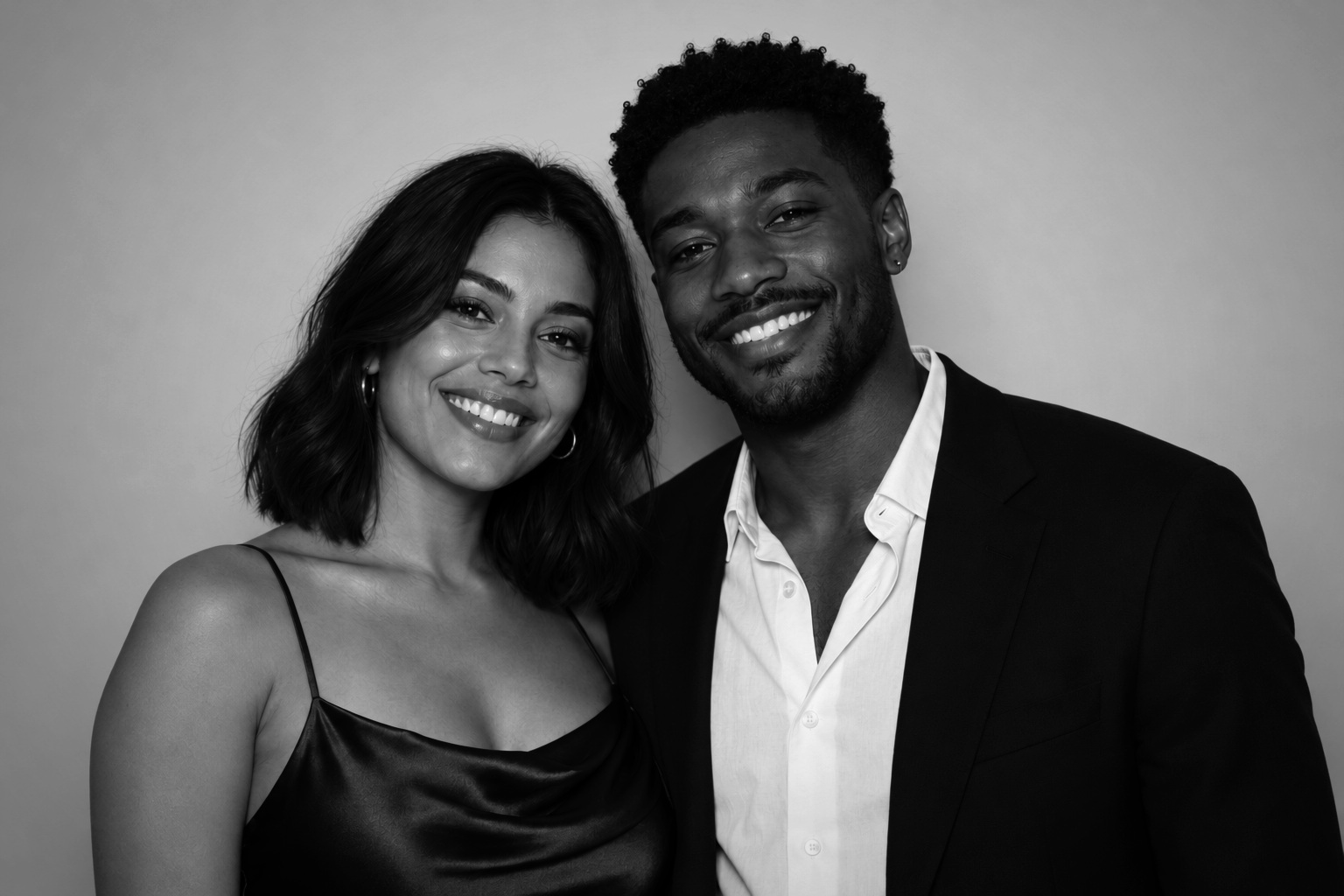 54 PNG layers
Deep Noir
Dark, moody, shaded edges.
Darker middle tones and a broad vignette for a dramatic finish.
A Color → B Soft Light → C Color Burn → D Multiply
ZIP · 85 KB
Layer settings and individual files for Deep Noir
Deep Noir layers in upload order, A nearest the photo Letter File Blend Mode Opacity A A-black-and-white--COLOR.pngBlack and white · 17 KB Color 100% / default B B-dark-midtone--SOFT-LIGHT.pngDark midtone · 17 KB Soft Light 100% / default C C-noir-depth--COLOR-BURN.pngNoir depth · 17 KB Color Burn 100% / default D D-landscape-vignette--MULTIPLY.pngLandscape vignette · 124 KB Multiply 100% / default Listed in application order: A nearest photo; final letter nearest decorative overlay.
Preview images
Finished examples for reference. Don’t upload these as effect layers.
- Download preview image1536 × 1024 PNG · 1009 KB
- Download enlarged preview3072 × 2048 PNG, enlarged from 1536 × 1024 · 2.4 MB






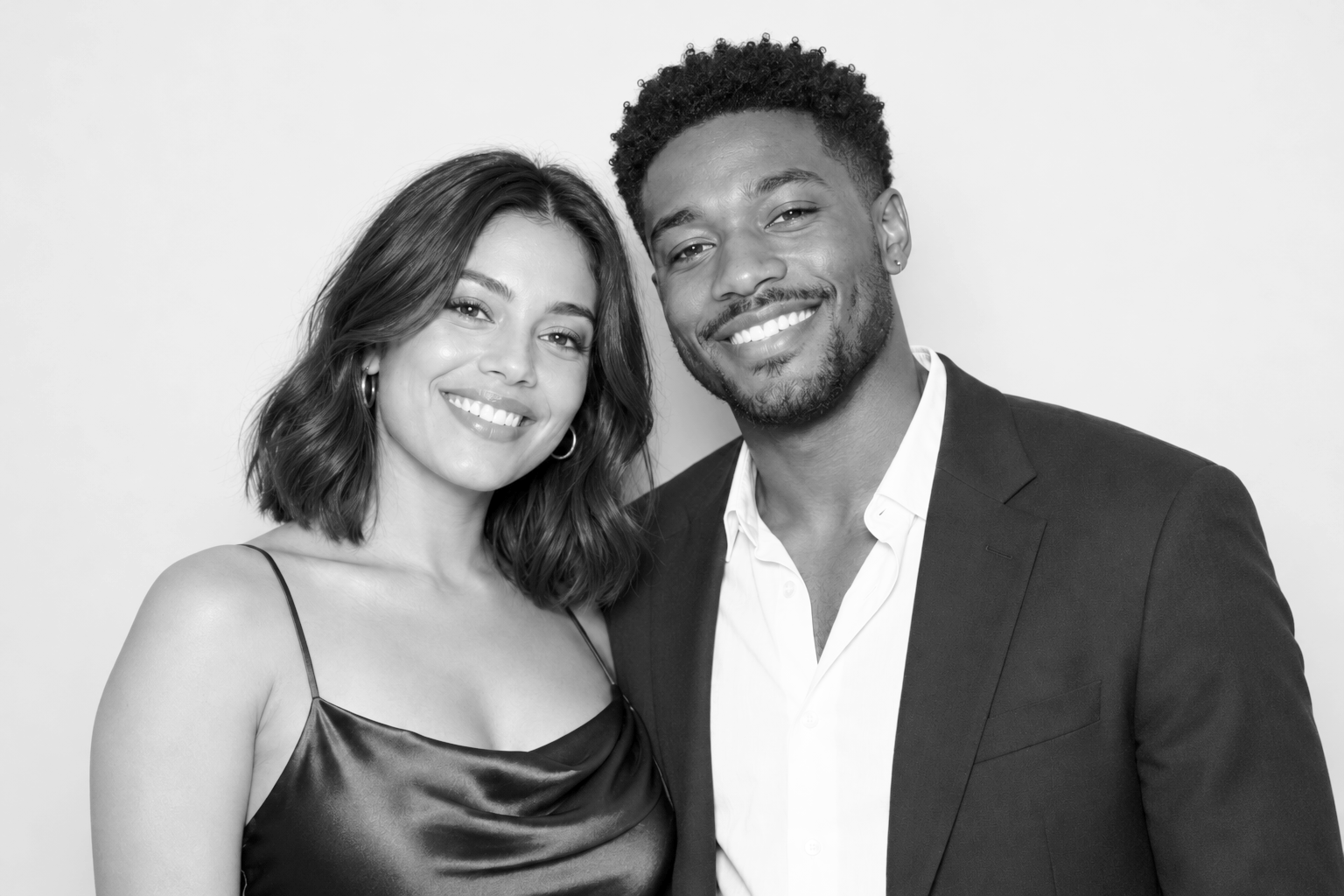
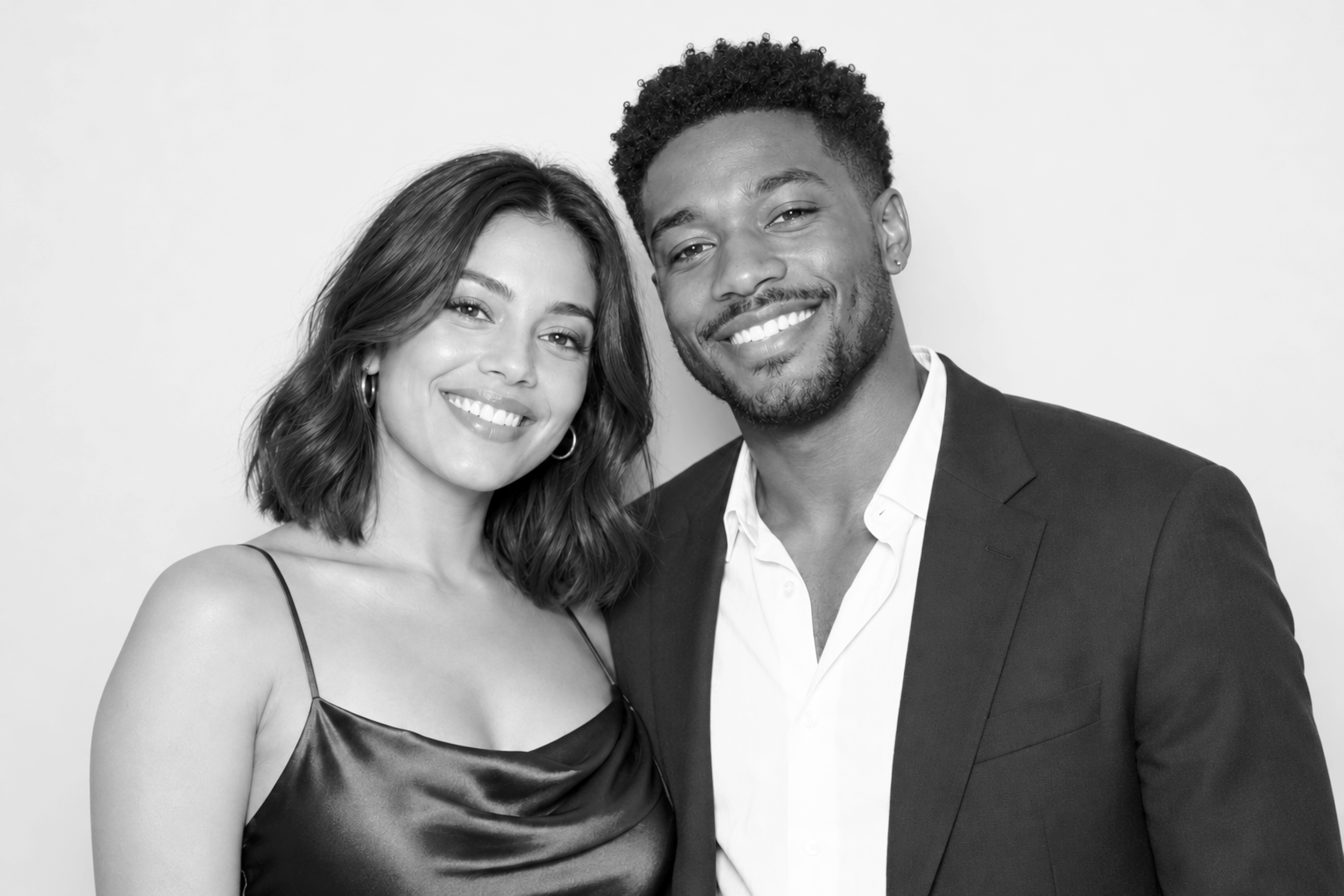




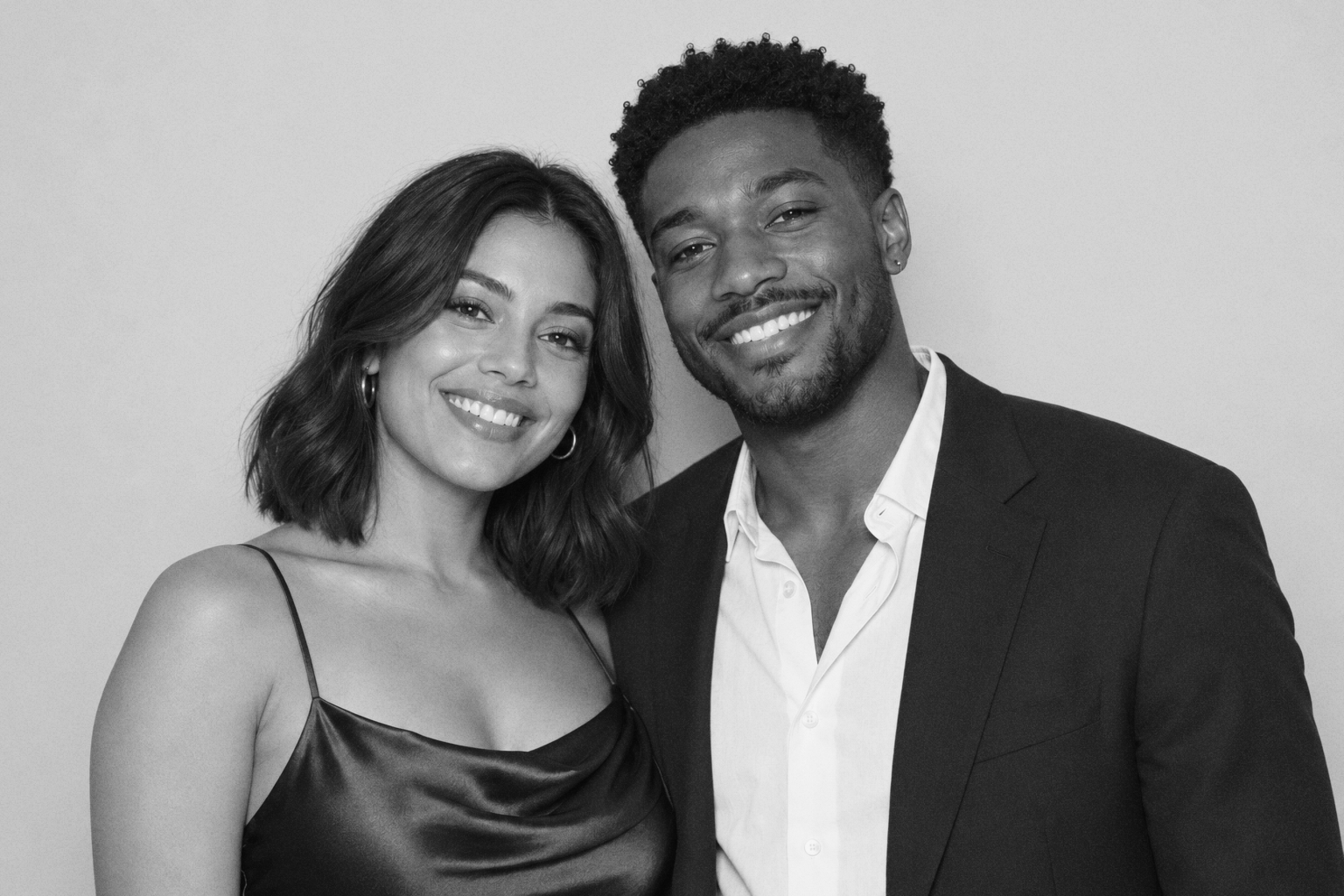
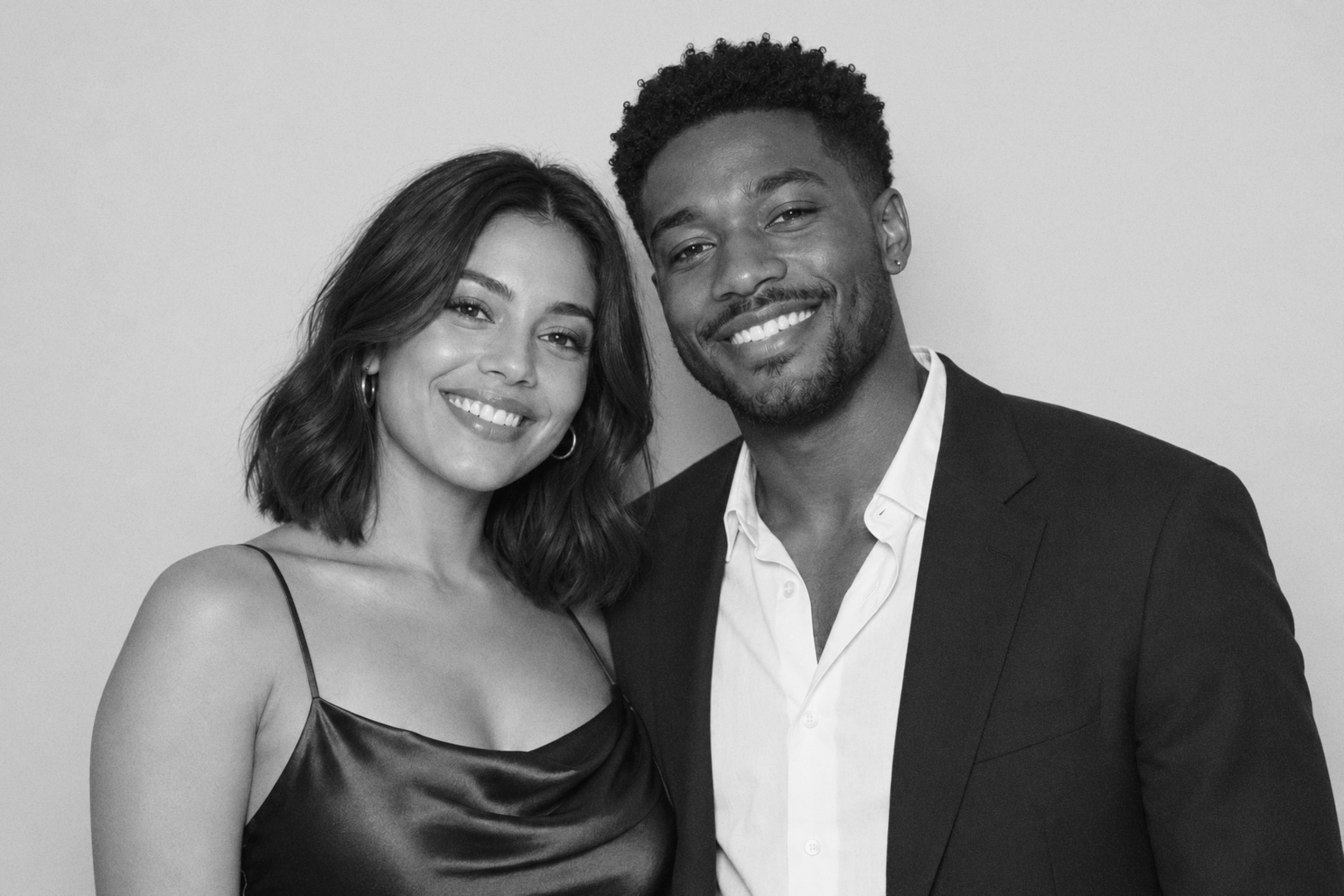



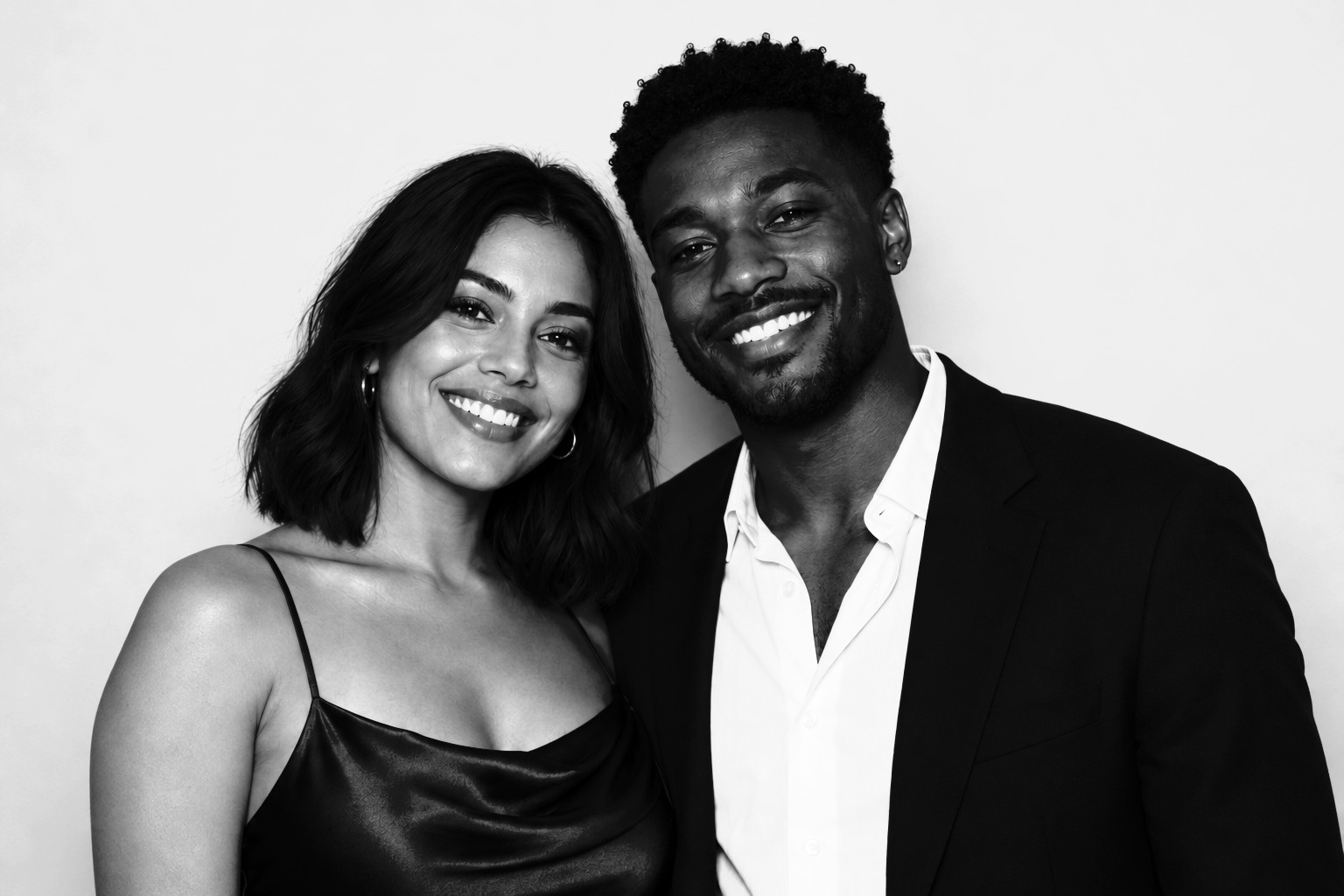
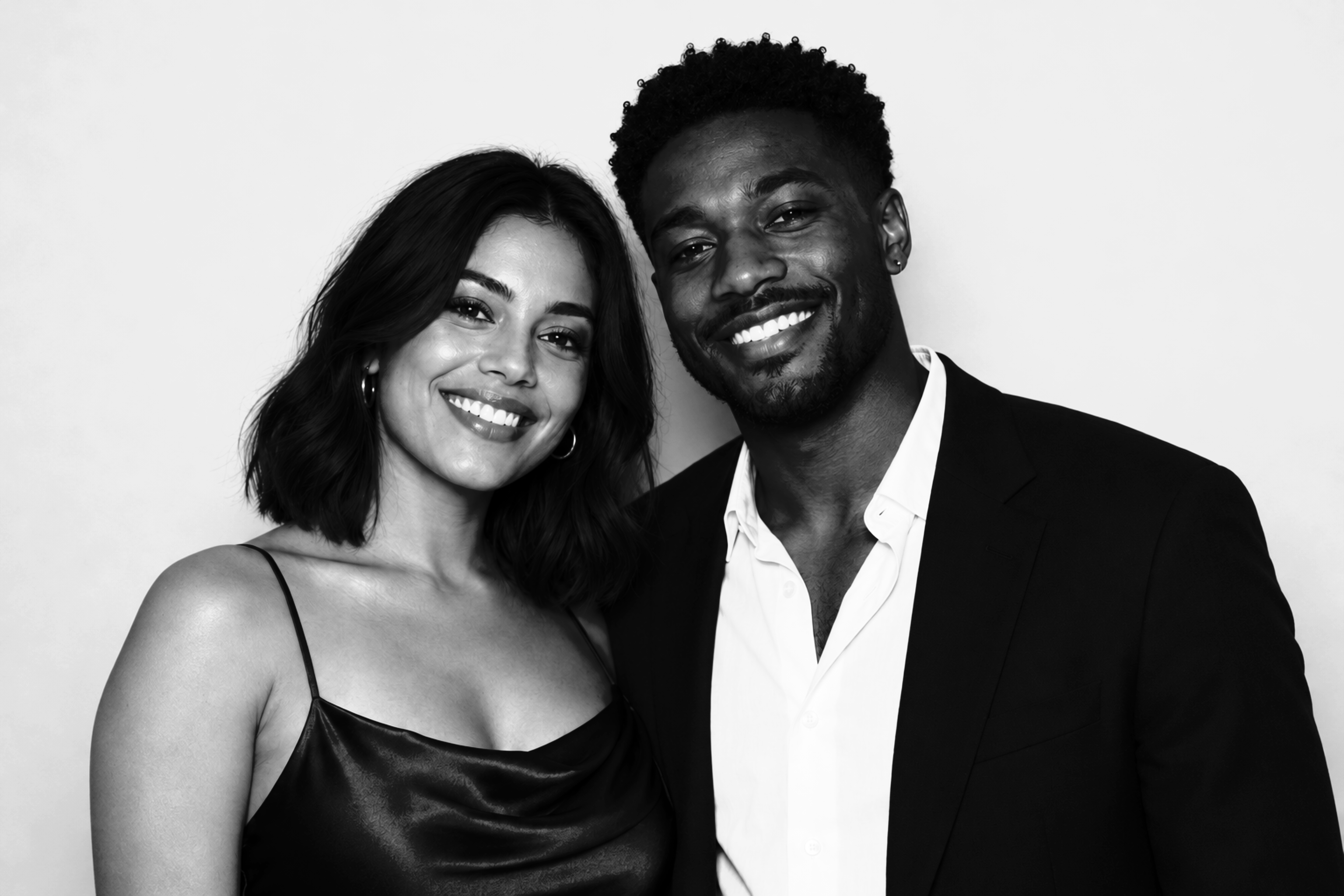


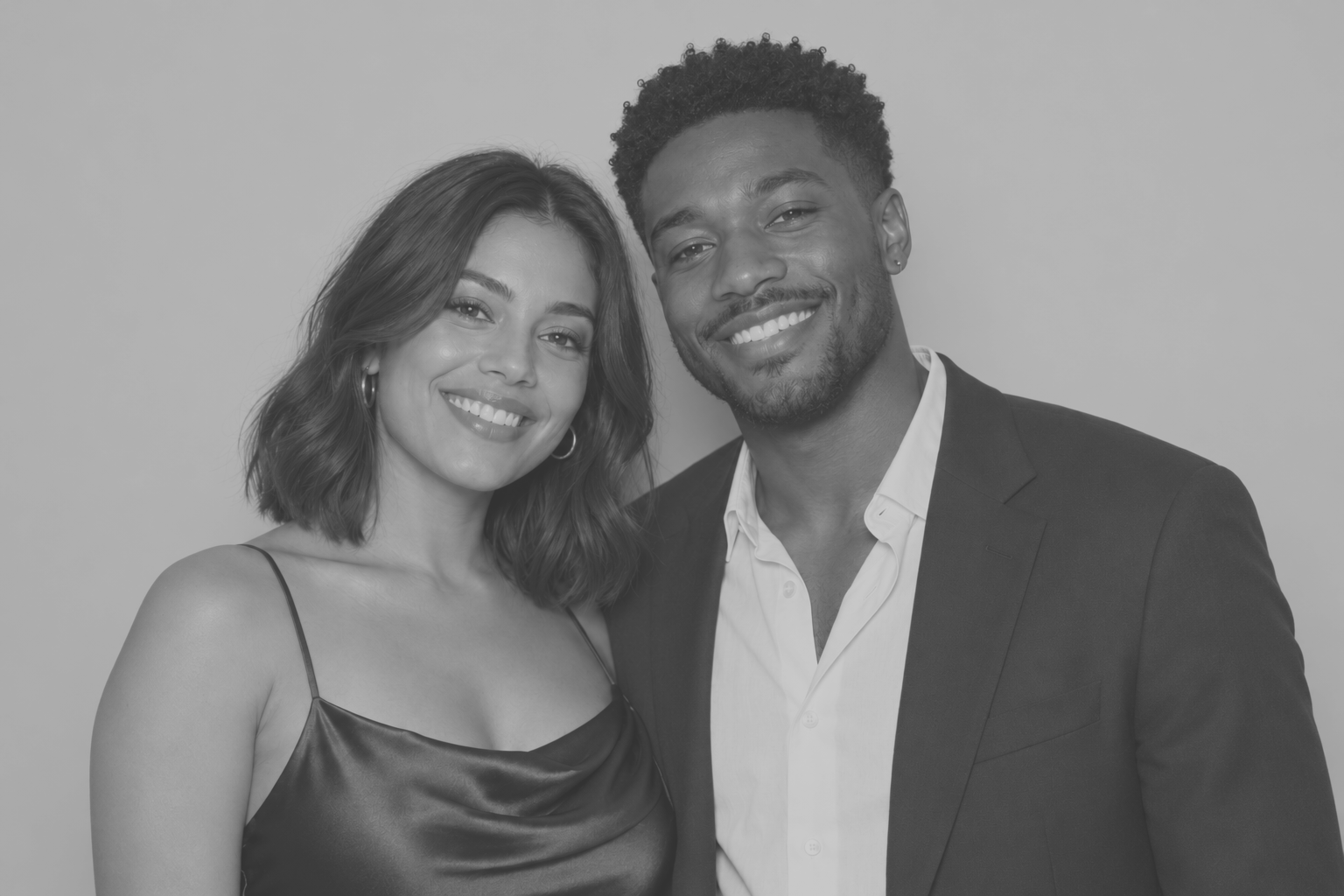
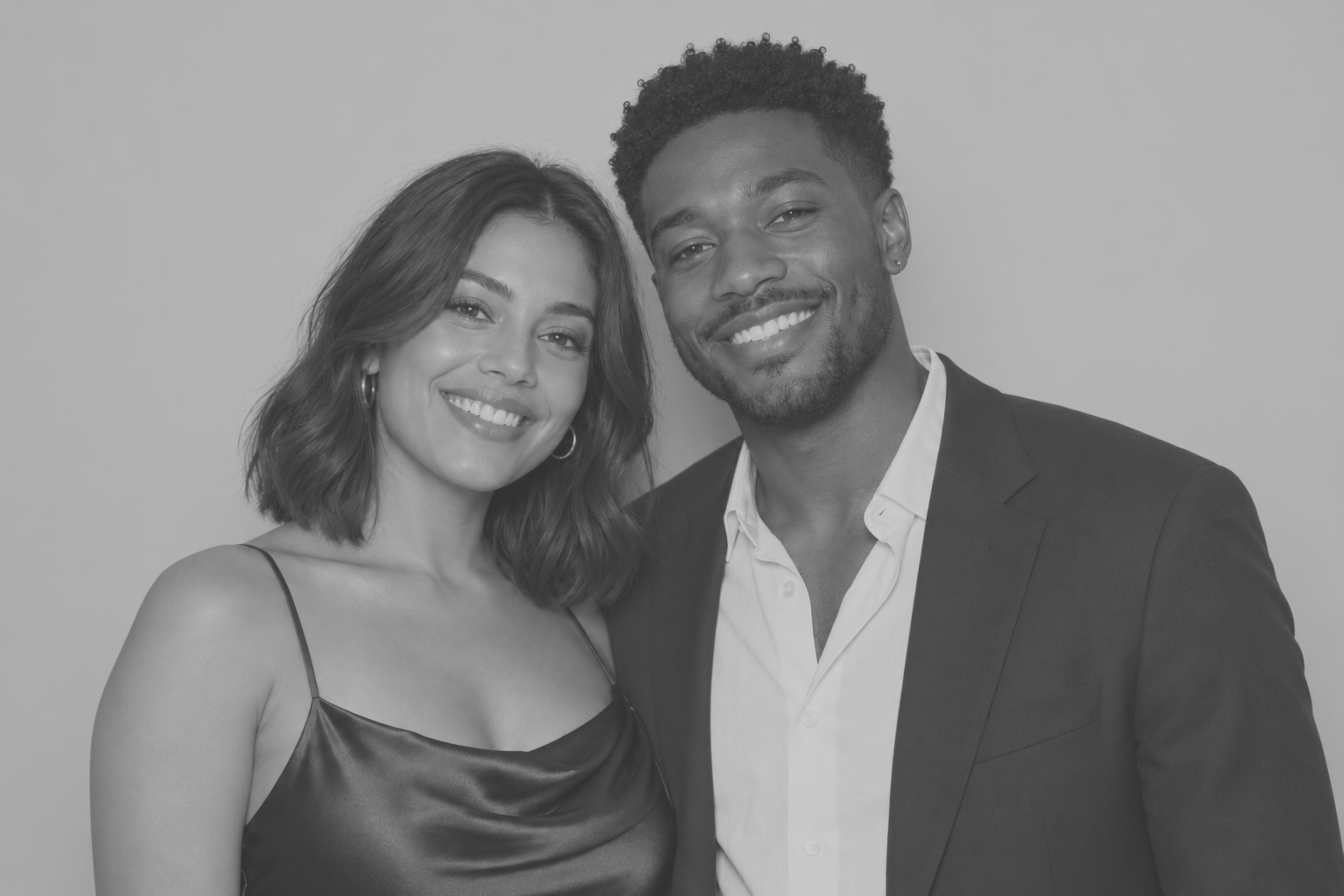




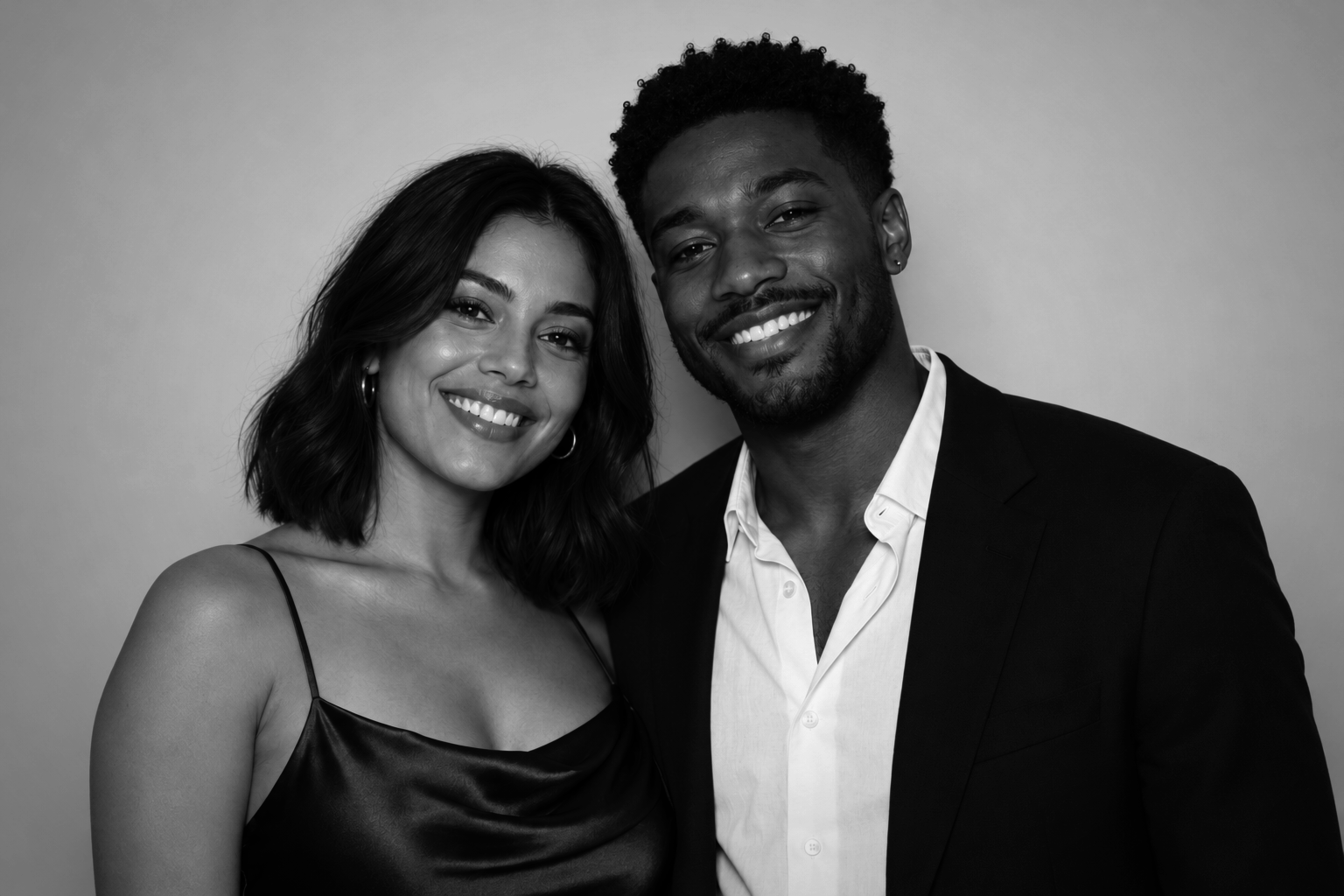
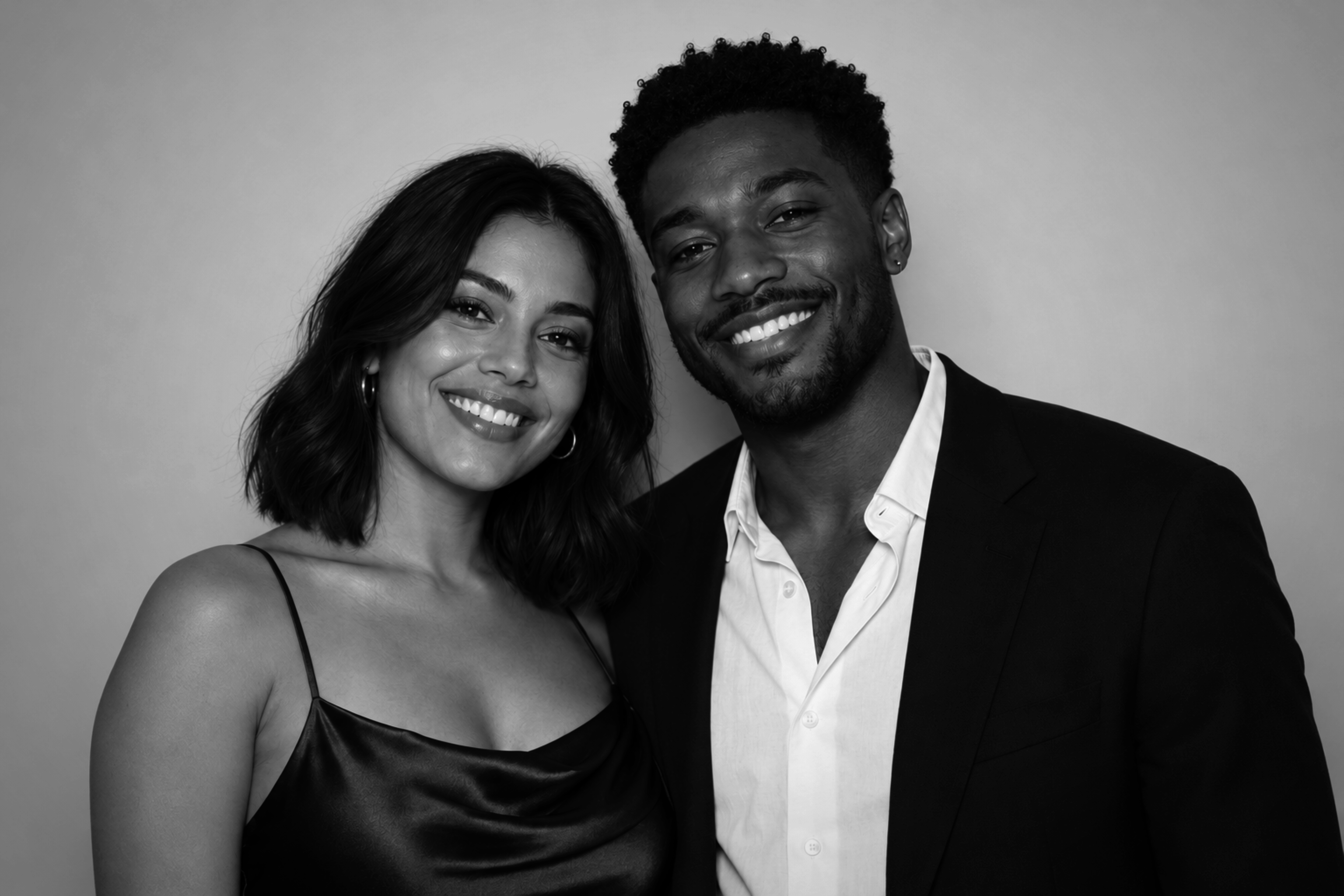
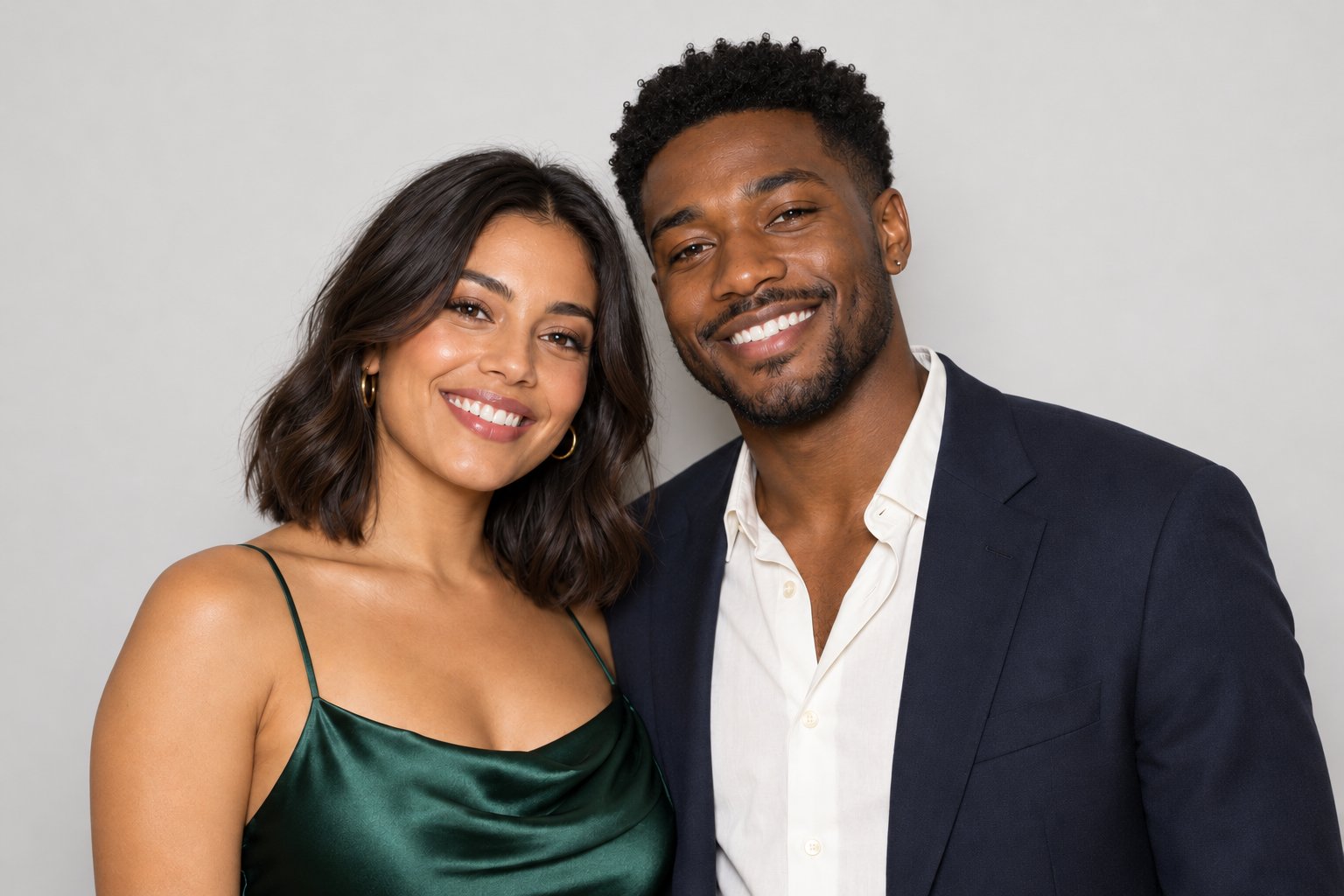
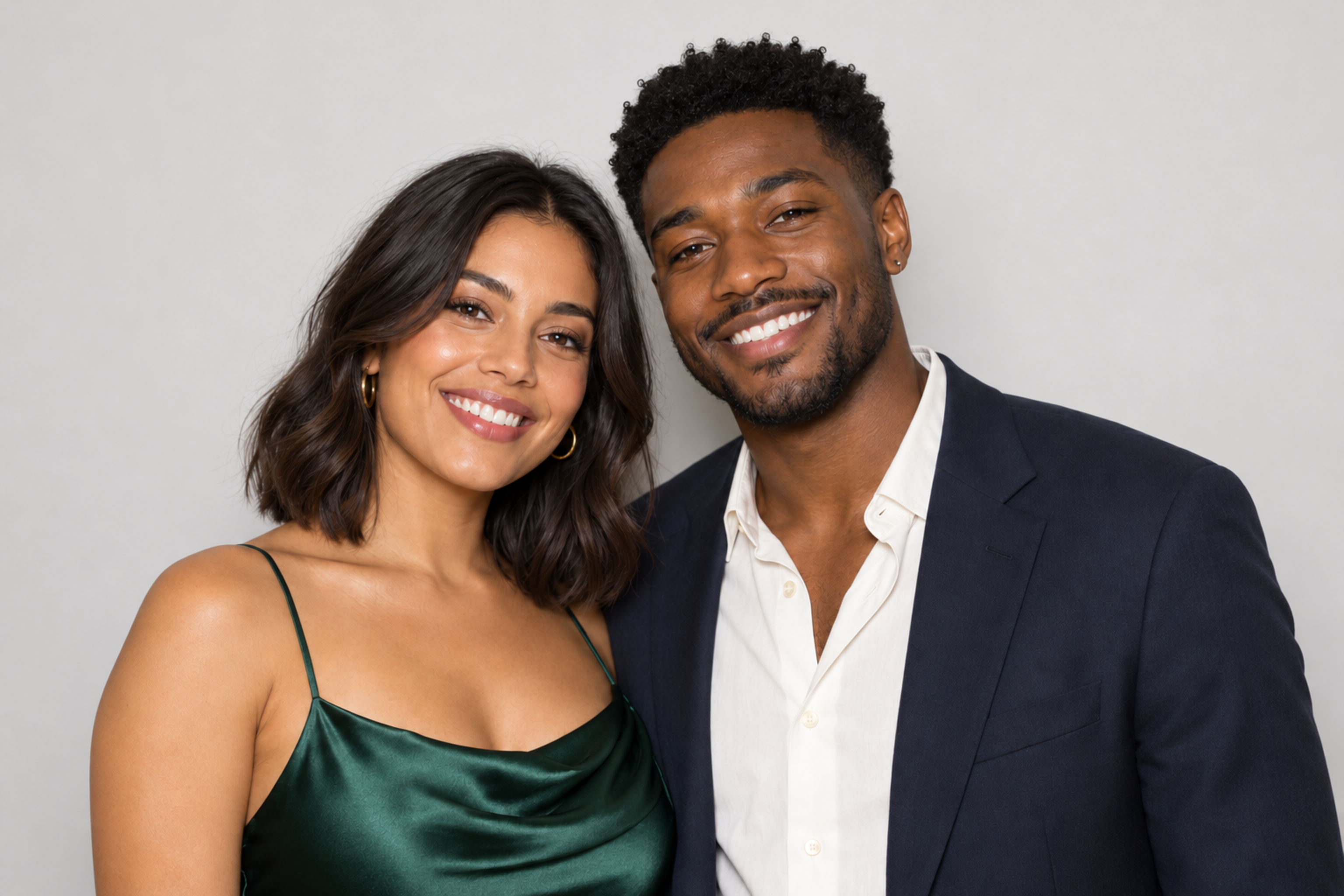
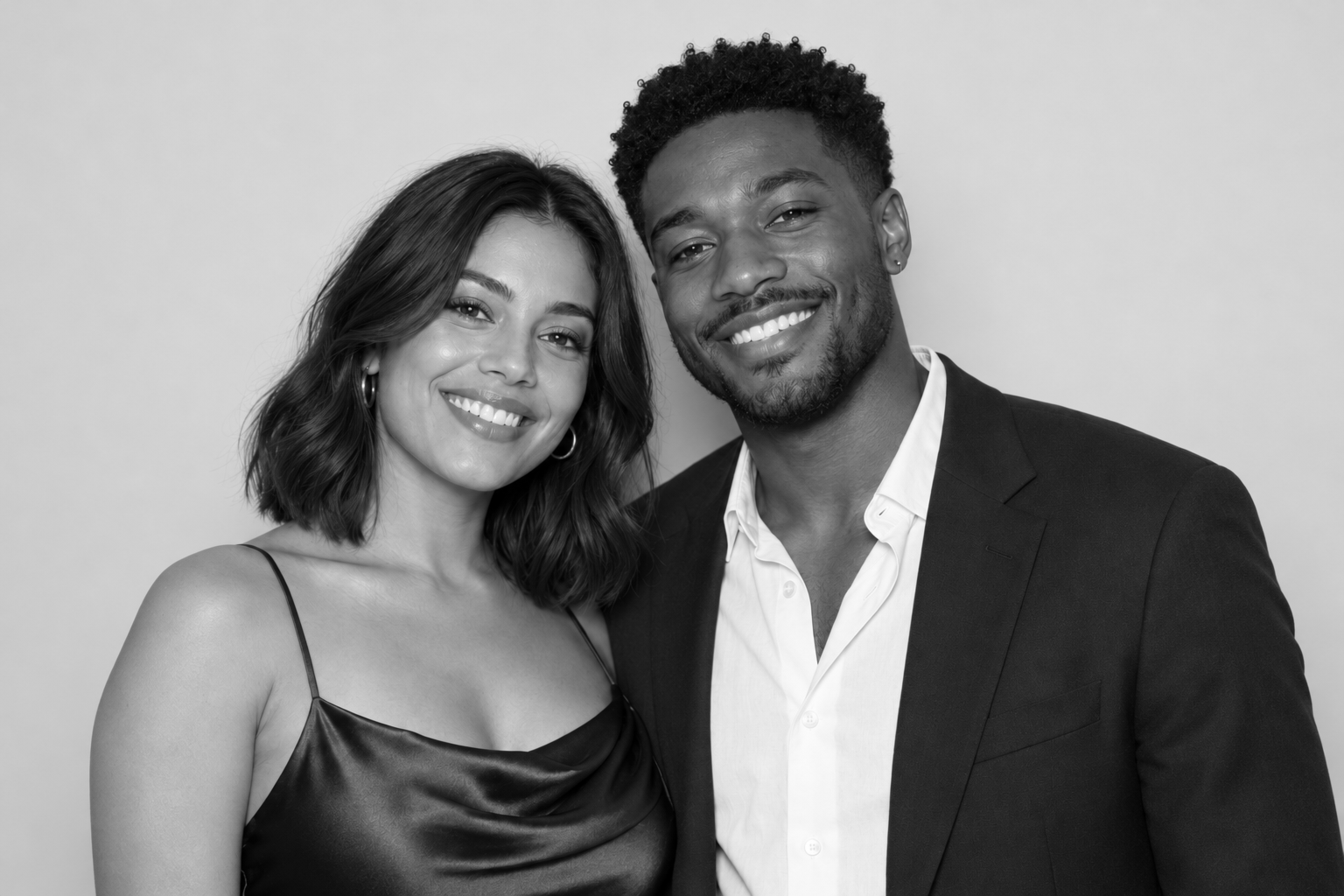
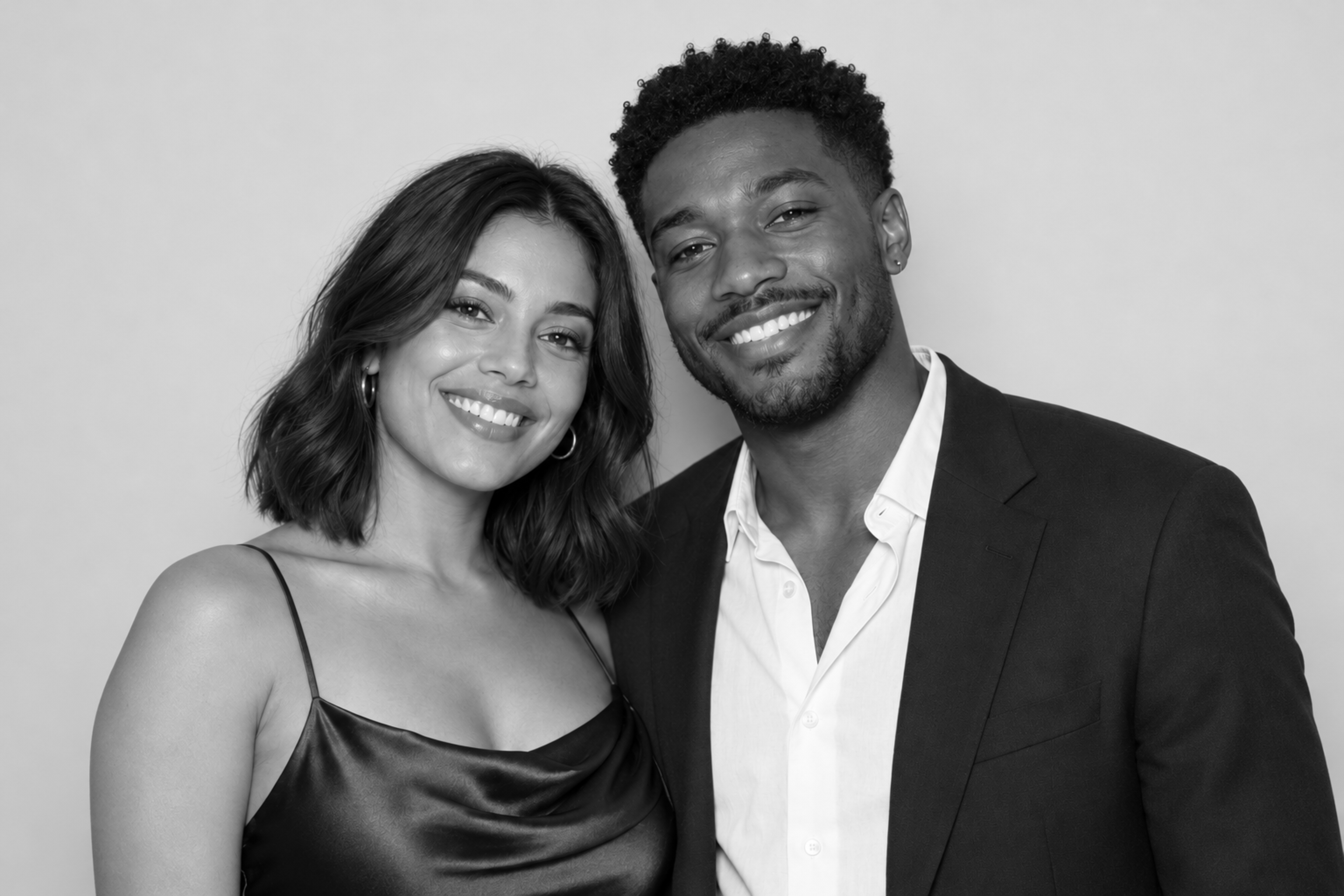
The sample is an AI-generated demonstration photo with a native resolution of 1536 × 1024. The 3072 × 2048 files are enlarged exports and contain no extra detail. Previews were composited from the PNG layers outside Snappic; test a saved capture before your event.
Setup guide
Add a look to your Snappic still template
Choose a look, download its PNG pack, then add the files to your still template in order. Each PNG has a specific Blend Mode. Together, the layers create the finished look on the photo beneath them.
Before you start
- Have access to the Snappic event you want to edit.
- Choose one look, download its ZIP and extract it so you can see the individual PNG files.
- Use the PNGs inside the look folder. The previews on this page show the result; they are not the files to upload as effects.
- Start with a well-exposed photo. For the clean glam direction, a plain off-white or light-grey background works best. Lighting and exposure affect the result.
- Keep a copy of your existing template if you want to preserve its current appearance.
Every effect PNG is 2400 × 1600. Its transparency already contains the intended strength, so use the editor’s default (full) opacity.
Step 1: Choose a look and download its PNG pack
Compare the five looks on the same sample photo. Open the one you want and click Download PNG pack. Extract the downloaded ZIP on your computer.
Inside, the PNG names begin with A, B, C and so on. The name also tells you which Blend Mode to choose. Keep the filenames unchanged so you can follow them in the editor.
For example, Signature Glam contains four PNGs. You need all four to reproduce the preview. Adding only its first PNG gives you the black-and-white base, not the full finish.
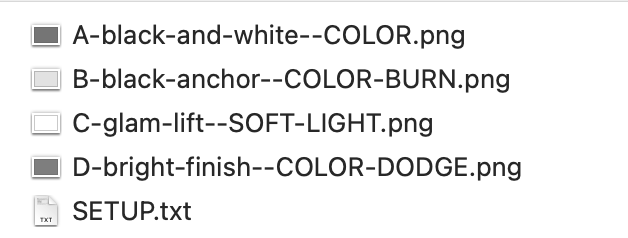
The extracted Signature Glam pack: four lettered PNGs and SETUP.txt. Step 2: Open your event’s still templates
Sign in to your Snappic dashboard and open the event you want to configure. Scroll to Templates (listed as Still Templates in the side menu) and click Edit beside Photo Templates.
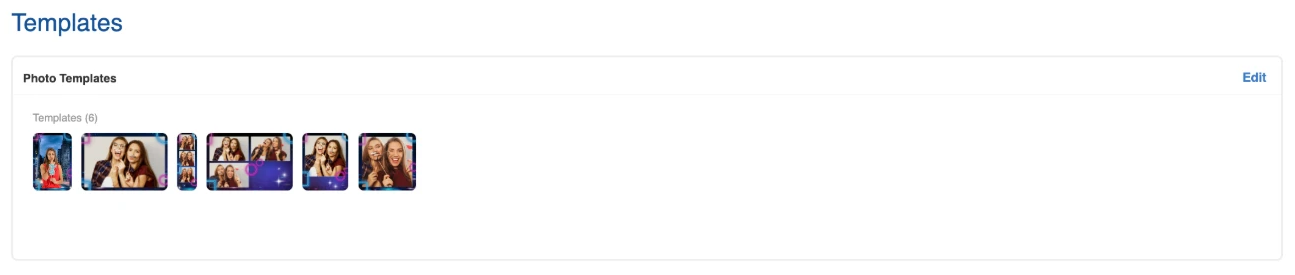
In your event, scroll to Templates and click Edit beside Photo Templates. Step 3: Choose or create a template, then click Edit
This opens Photobooth Template Design. Click Edit under the template you want to change, or start one with Create New Template or Template Library. Keep a copy of your existing template if you want to preserve how it looks now.
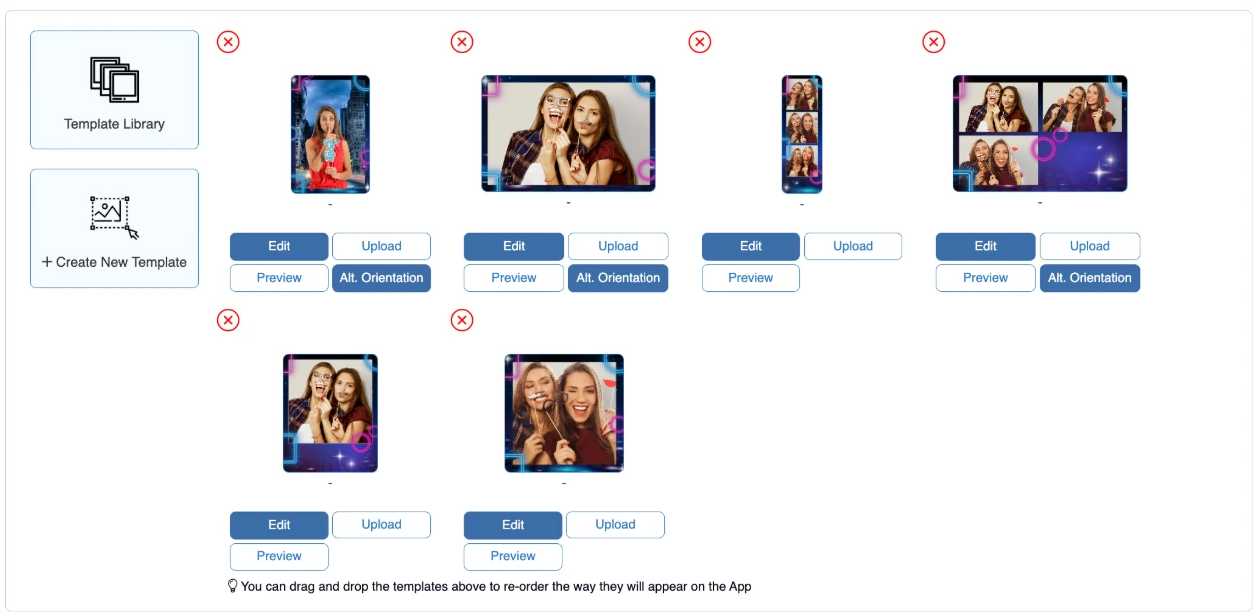
On Photobooth Template Design, click Edit under a template — or use Create New Template or Template Library. Step 4: Upload PNG A
In the template editor, click Add Image — the image icon with a plus sign above the canvas — and choose the PNG beginning with A. It appears in the Layers list as Image.
Select the uploaded image layer. A grey block may cover the sample photo while its Blend Mode is still Normal. That’s expected — you’ll change the mode shortly.
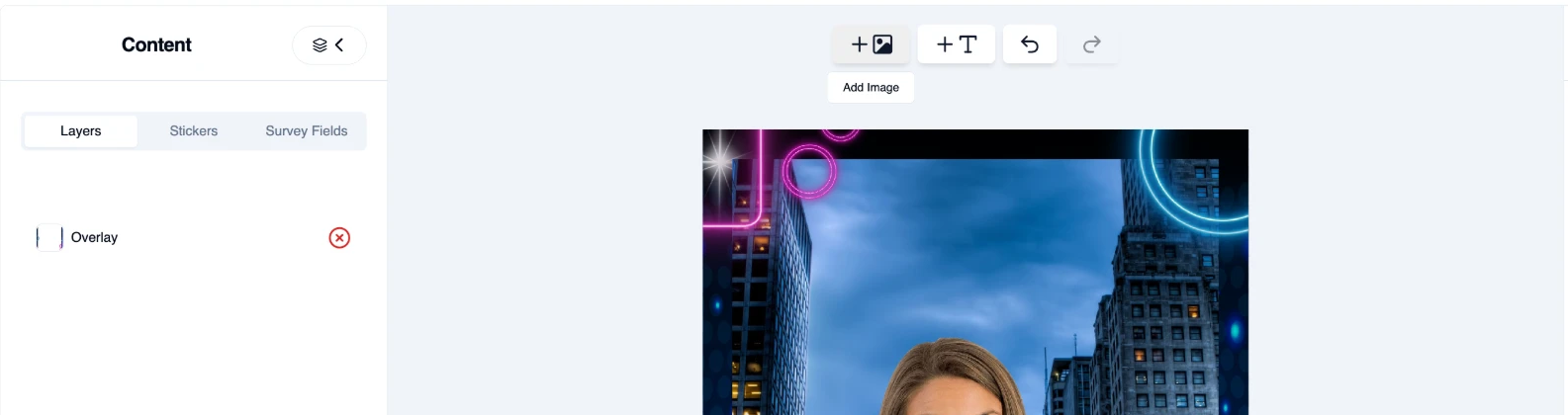
In the editor, click Add Image (the image icon with a plus) and choose PNG A. Step 5: Make the PNG cover the photo
If the PNG is too small, drag its corner handles until it covers the whole image area you want to affect. Check all four edges — an uncovered edge can stay in colour or show a different tone.
For a single full-frame photo, cover that entire photo. For a template with several photo windows, size and position the effect layers for each photo area. Fit grain and vignette files to each photo window rather than stretching them across a whole strip.
The flat-colour PNGs stretch to any proportion. The grain and vignette were designed for landscape 3:2 photos; changing their proportions changes how they look. For the closest match to these previews, use landscape 3:2.
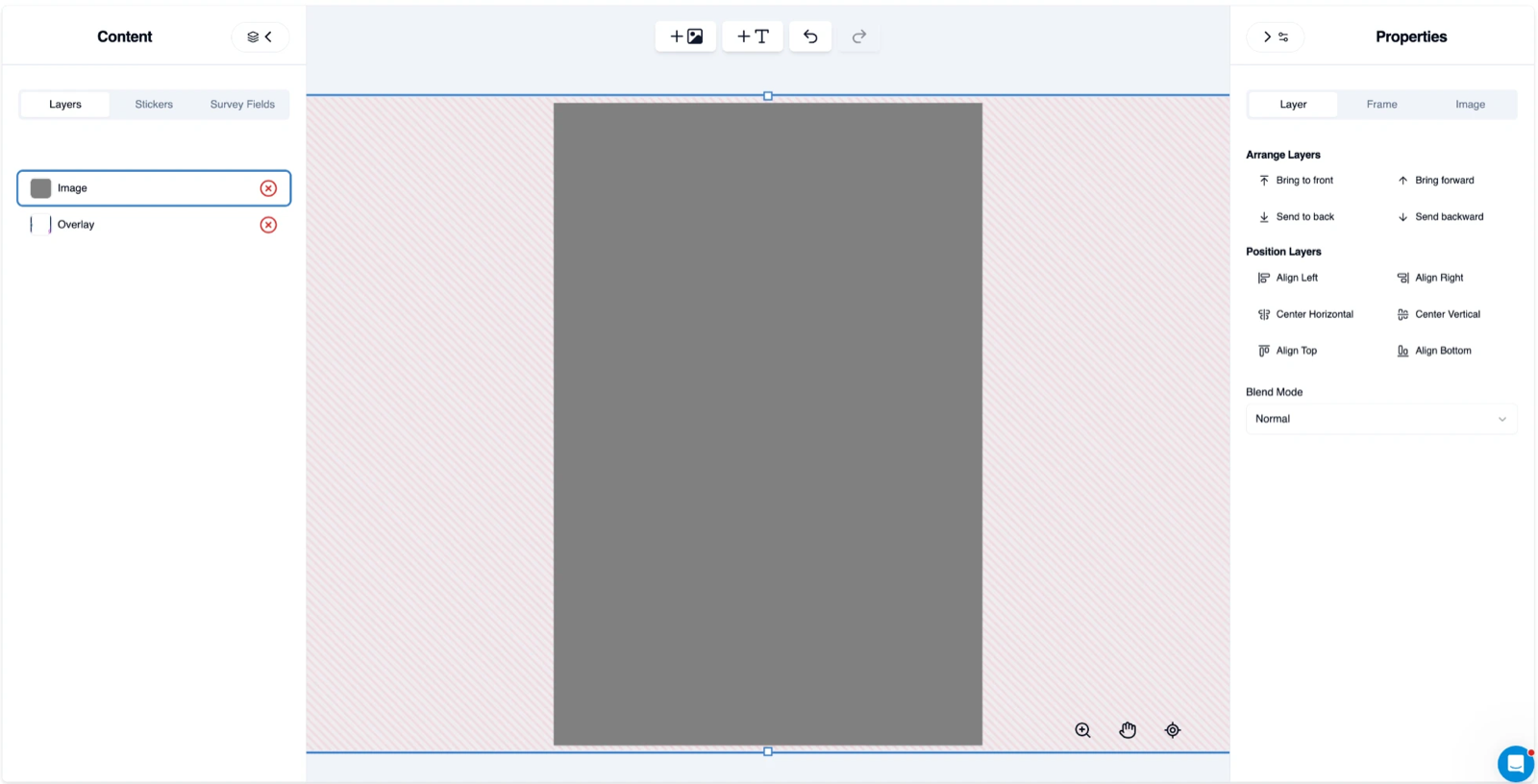
Drag the handles until the PNG covers the whole photo area. It shows as a grey block until you set its Blend Mode. Step 6: Place it below your decorative overlay, above the photo
Keep any decorative frame, event branding, logo or text above the effect PNGs so the effects don’t change them.
Select the image in the Layers panel, then use Arrange Layers in Properties → Layer to move it beneath your decorative overlay. The effect must still sit above the photo it’s meant to change. Use Send backward or Bring forward for precise placement.
Watch out: Send to back
Send to back can be a starting point, but don’t use it on every new PNG without checking — that reverses the recipe. A must stay nearest the photo, B above A, C above B, and so on. Your decorative overlay stays above the whole stack.
Signature Glam: the finished stack If your editor shows the photo differently, use this to understand what must affect what — your template may not list a layer literally named “Photo”.
Layers panel · top to bottom
- Decorative overlay, logos and text
- DBright finishColor Dodge
- CGlam liftSoft Light
- BBlack anchorColor Burn
- ABlack and whiteColor
- Photo
↑ Top / frontBottom / back ↓Upload order
- 1.AColor
- 2.BColor Burn
- 3.CSoft Light
- 4.DColor Dodge
You upload A first, so it ends up lowest — directly above the photo. Each new file goes above the previous one, which is why the Layers panel reads in reverse: D at the top of the effects, A at the bottom.
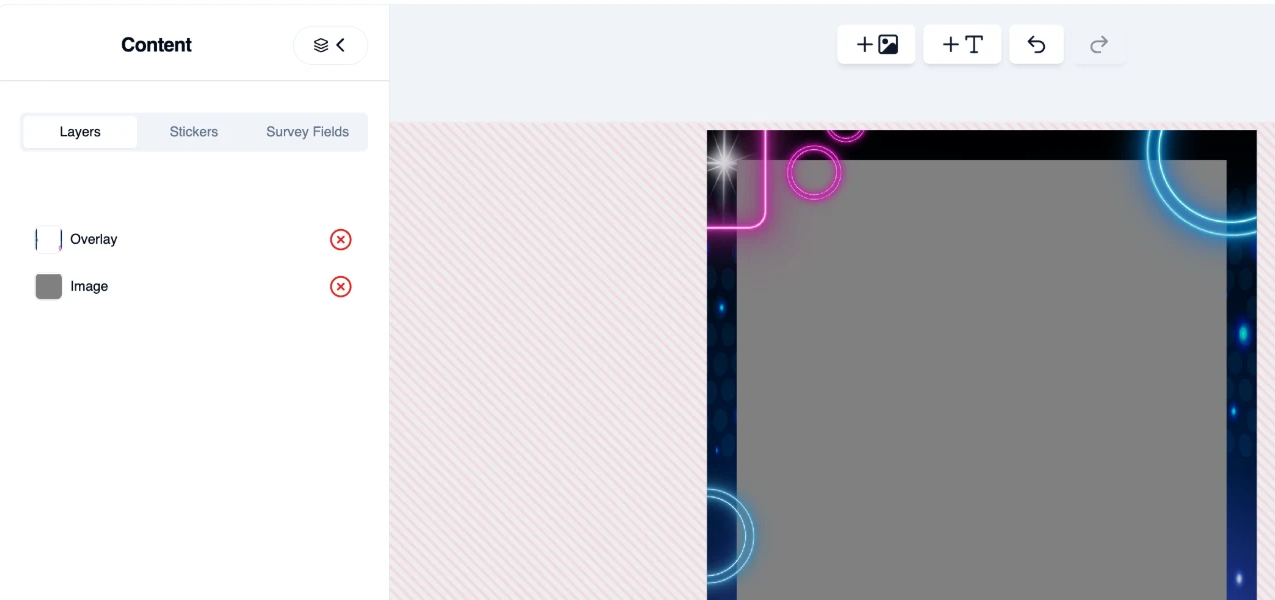
In Layers, Overlay sits above the effect Image. Step 7: Set its Blend Mode
With PNG A selected, open Properties → Layer and find Blend Mode below Arrange Layers and Position Layers. Snappic’s Template Designer guide covers the rest of the editor.
For PNG A in every pack, choose Color. This removes the colour from the photo underneath.
The setting is called Blend Mode. Don’t pick the option named Overlay — none of these five recipes uses it.
Leave the editor opacity at its default (full) value. The strength is already built into each PNG’s transparency.
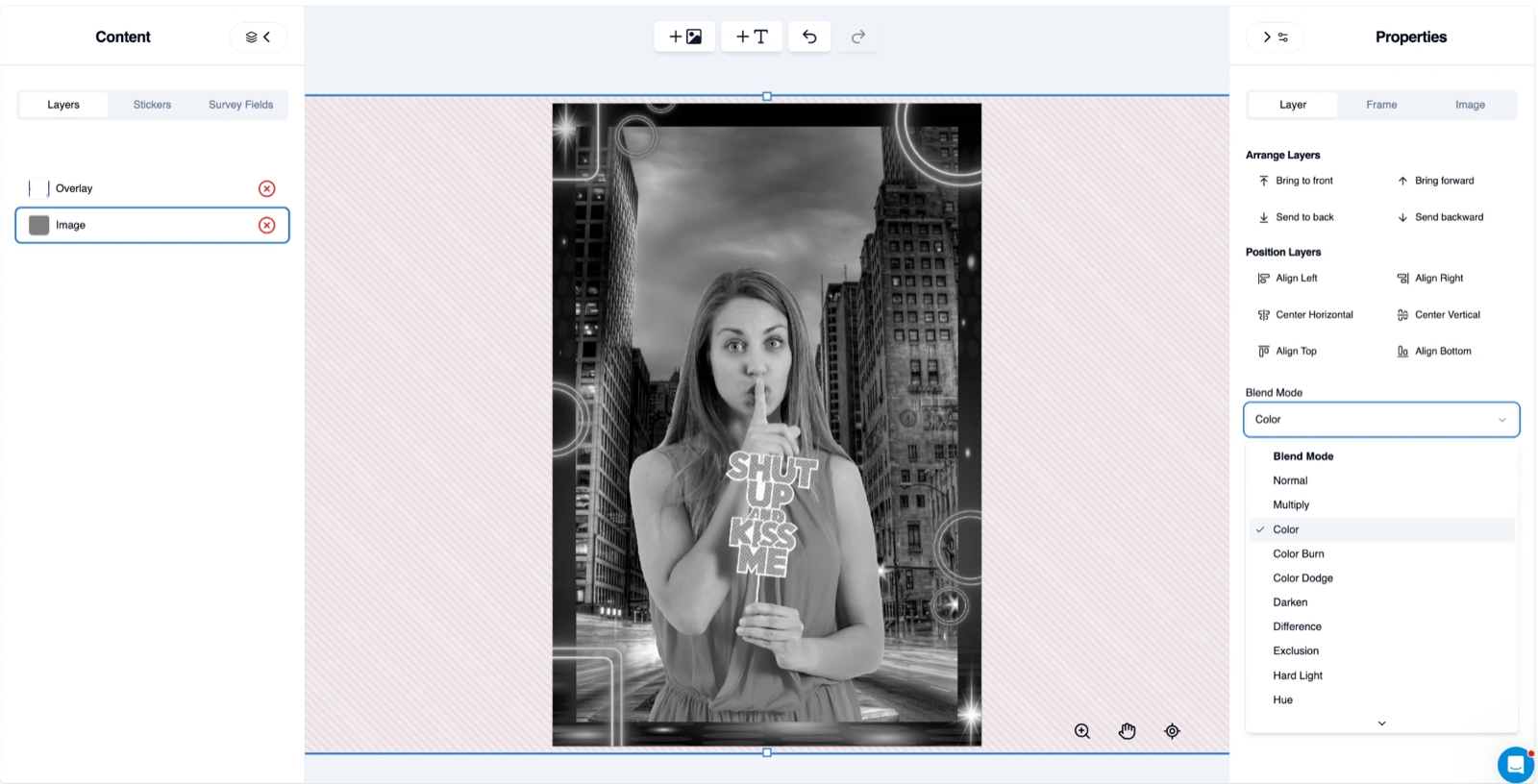
With the Image layer selected, set Blend Mode to Color in Properties → Layer. Step 8: Repeat for B, C and the remaining files
Upload the next PNG, resize it to the same photo area, place it above the previous effect but below your decorative overlay, and select the Blend Mode in its filename. Repeat until every file in the pack is in.
Check the mode and the order after each upload. Two layers with the same mode are still separate layers — include both. Use one complete recipe at a time; don’t add a new look on top of a previous one.
Settings for each look
Read each row from A upward. The last letter sits closest to the decorative overlay. All files use full opacity.
Upload order and Blend Modes for each look Look Upload order and Blend Modes PNGs Signature Glam A: Color, then B: Color Burn, then C: Soft Light, then D: Color Dodge 4 Analog Booth A: Color, then B: Color Burn, then C: Soft Light, then D: Exclusion, then E: Soft Light 5 Hard Flash A: Color, then B: Color Burn, then C: Color Dodge 3 Matte Archive A: Color, then B: Exclusion 2 Deep Noir A: Color, then B: Soft Light, then C: Color Burn, then D: Multiply 4 Full filenames are in each look’s layer settings above and in the pack’s SETUP.txt.
Step 9: Save, then check a finished test capture
Click Save at the top of the editor, then Save changes on the Photobooth Template Design page. Open the updated event on your booth device, make sure it has loaded the latest template, and take a test capture.
Inspect the saved, template-applied photo — not just the editor sample. Check that the photo is monochrome, all edges are covered, your branding is unchanged and facial detail is still visible. If you offer prints, check a print too.

Click Save at the top of the editor. Show Overlay Preview is here too. The previews on this page were rendered from the supplied layers outside Snappic. A finished Snappic capture is the final check of your setup, exposure and rendering.
Create your own look
Design a custom look with an AI assistant
Once you know how the PNG layers work, you can build your own. Use an AI assistant to turn a reference photo into a layer recipe, then test it in Snappic.
Step 1: Choose a reference photo
Identify what you like about it: bright skin tones, deep blacks, faded contrast or grain.
Step 2: Upload it to ChatGPT or Claude
Ask the assistant to separate the effects PNG blend layers can achieve from lighting, smoothing and other processing.
Step 3: Request the assets and settings
Downloadable PNGs, exact Blend Modes, layer order and a preview using your own sample photo.
Step 4: Test in Snappic
Apply the recipe, take a capture and send the result back to the assistant for adjustments.
The key distinction
A reference photo guides the look — it isn’t itself the effect PNG. Ask the assistant to preview the actual layers it supplies: an AI-generated “after” image could show a result those files can’t produce.
Copy this prompt
Paste it into ChatGPT or Claude, then attach your reference image and an unedited sample photo. Add your template’s dimensions if you have them.
AI prompt: create a Snappic look
Help me create a reusable photo look for Snappic using the attached reference image.

I want downloadable PNG layers that I can upload into Snappic's template editor and apply using Blend Modes. I have also attached an unedited sample photo to preview the result.

First, analyse the reference's tonal contrast, colour or monochrome treatment, highlights, shadows and texture. Explain which characteristics can be approximated with static PNG layers and which depend on lighting, skin smoothing, blur or other processing.

Then create the simplest practical layer recipe:

- Supply the actual downloadable PNG files, preserving any required transparency.
- Name each file with its application order and exact Blend Mode.
- List the layers from nearest the photo to the top.
- Specify the editor opacity, distinguishing it from transparency already built into the PNG.
- Ask for my available Blend Modes if you cannot confirm that the required modes are supported.
- Use my template dimensions if provided; otherwise ask before creating texture or vignette layers.

Create a before-and-after preview by applying those exact PNG files and Blend Modes to my sample photo. Do not generate or retouch a separate "after" image to imitate the reference.

Keep the recipe reusable across different people. Explain its limitations and give me clear Snappic setup instructions.

If you cannot create files or render the blend operations in your environment, say so instead of presenting a simulated preview as a working result.

After I test it in Snappic, help me refine the recipe using my saved test capture.
Facial smoothing is a separate setting
The PNG recipes change tone and, for some looks, add grain or edge shading. They don’t smooth skin, and a PNG can’t store a smoothing setting.
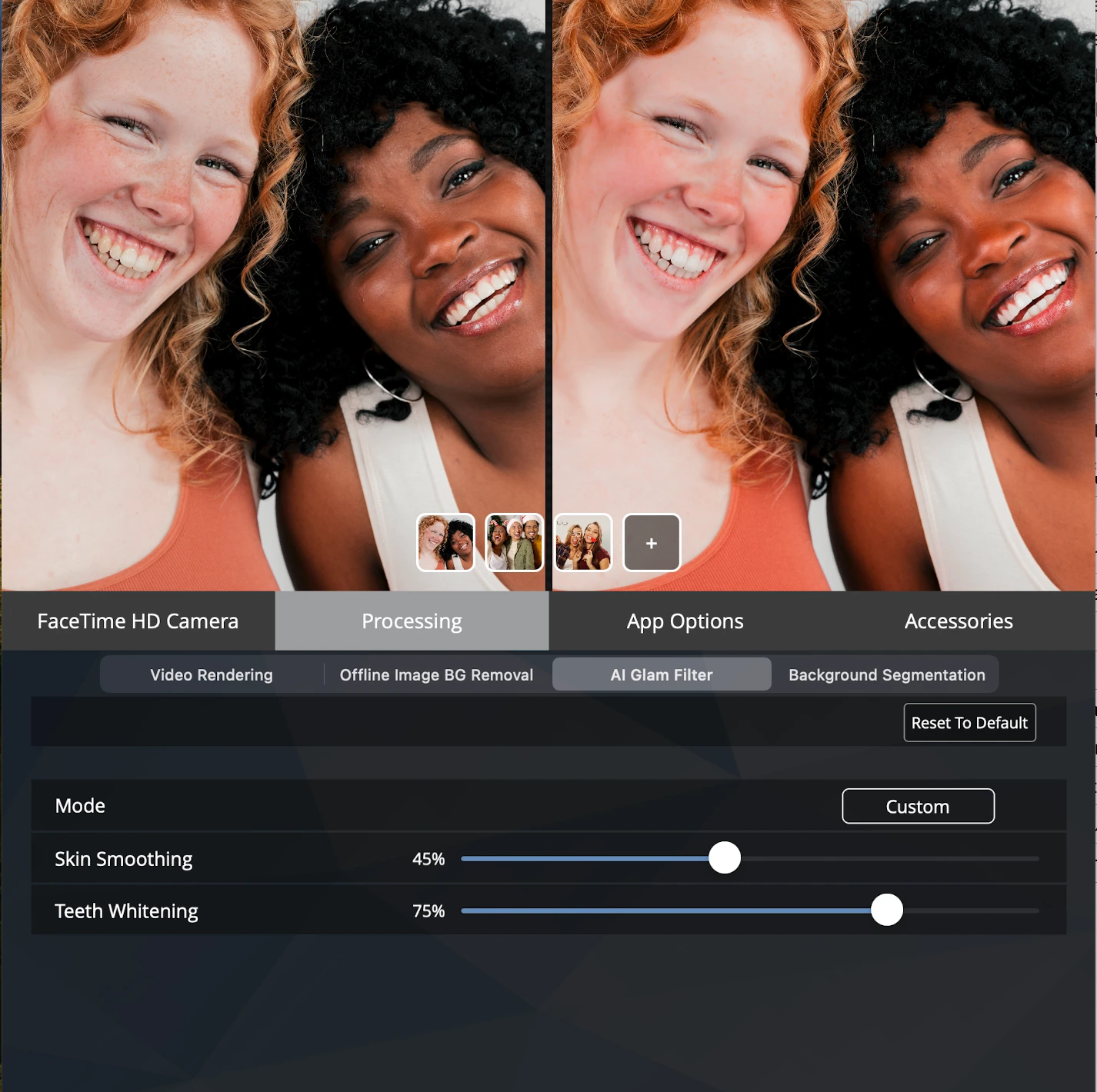
For facial smoothing, open your event’s Event Options, click Edit, select Photo Glam and save your changes.
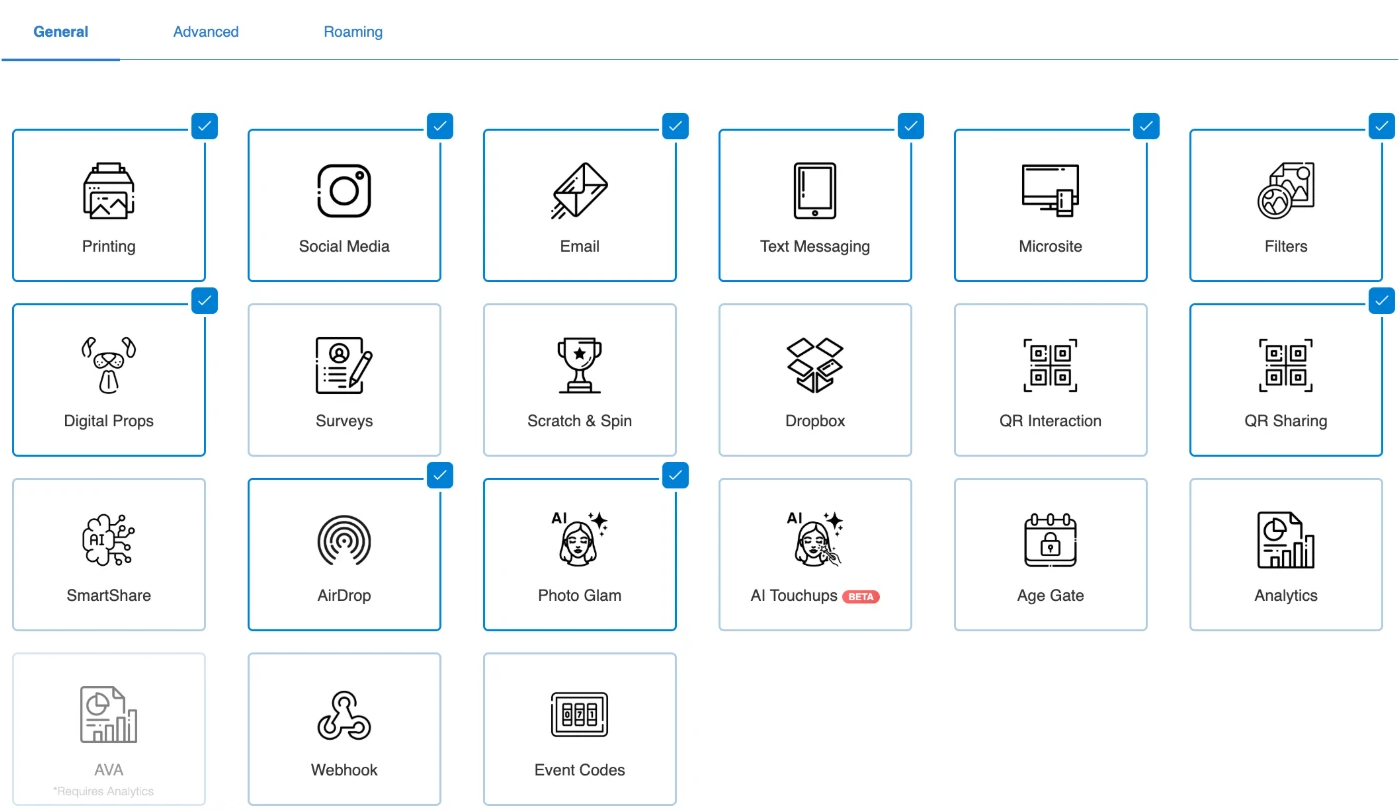
On the booth device, open the event and tap Start Photo Booth, then go to Processing → AI Glam Filter. Use a sample or uploaded photo to adjust Skin Smoothing and Teeth Whitening, comparing Original and Processed.
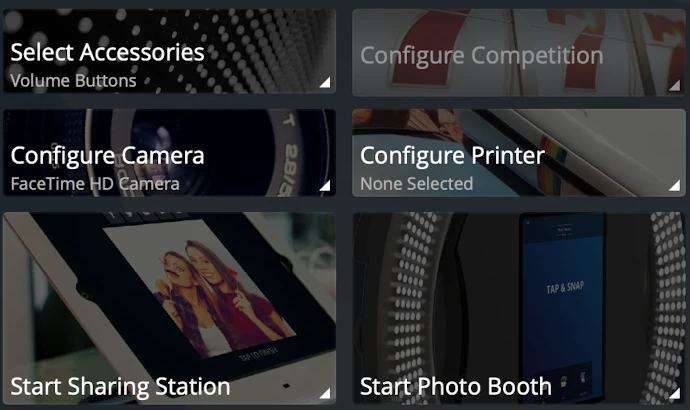
Photo Glam applies across the whole event, not per look. Smoothing is limited to facial skin — it doesn’t blur the whole image. Judge it on a sample and a test capture rather than expecting a live camera preview.
Troubleshooting
If something looks off
A solid grey or black rectangle
Select that PNG and set its specified Blend Mode. It may still be Normal.
The photo stays in colour
Confirm A is present, covers the photo and uses Color. Check that it is above the photo.
Only part of the photo changes
Resize and align every effect PNG to the same photo area.
The logo or frame changes colour
Move the decorative overlay, logo and text above all the effect layers.
The result differs from the preview
Check A-to-last-letter order, every Blend Mode, missing or duplicate files and editor opacity. Then compare your original exposure and lighting.
Switching looks produces an extreme result
Remove the previous effect stack before adding the new one. Keep the photo and decorative design elements.
Hard Flash loses too much facial detail
Check the original exposure, then try Signature Glam or Analog Booth. Reducing a finishing layer’s opacity, if your editor provides it, creates a customised variant rather than the supplied recipe.
Deep Noir is too dark
It is intended for well-lit subjects. Check the base exposure or choose a brighter look.
Grain or vignette appears stretched
Fit those files to each landscape photo area. Do not stretch a single texture across multiple frames.
The template preview is missing the overlay
Check Show Overlay Preview; also inspect a finished capture.
The booth still shows the previous result
Confirm the correct template was saved and assigned, then load the updated event on the booth device.
FAQ
Frequently Asked Questions
Can I combine the PNGs into one file?
Each layer uses its own Blend Mode. Flattening the stack into a single PNG does not preserve those separate operations on future photos.
Can guests select these like native Snappic Guest Filters?
These downloads are template image-layer recipes. Uploading them does not automatically create entries in the app’s Guest Filter menu. This page lets operators choose and download a look to configure in their template.
Will a plain grey PNG work?
Yes. Its pixel values and Blend Mode are the effect. Keep it as a PNG so its supplied transparency is preserved; do not replace it with a screenshot or JPEG.
Will it exactly reproduce a particular photographer’s booth?
No. Lighting, exposure, camera settings and processing all contribute. Analog Booth adds tone and grain, but not optical soft focus. Signature Glam adds a bright tonal finish; skin smoothing remains separate.
Are the sample photos camera originals?
They use one AI-generated demonstration photo. The same composition is used for every look, and the previews apply the actual downloadable layer recipes without extra skin retouching.
Pick a finish, then test a capture
Download a PNG pack, follow the steps above, and check a saved capture before your event.
Still stuck? The Snappic Help Center covers templates, events and booth settings.